Introduction
Lately, with the constant flow of security breaches in the news, I immediately started thinking about what I could improve in my lab. In the past I automated a fair part of my lab so that it powers on every morning and shuts down every evening to save on the energy bill. For a long time, I wanted to move the credentials into 1Password which would then pull them in securely and fully unattended, but I just never got around to it… until a few days ago! Perhaps you’re currently in the same boat as me and if so, I hope this helps!
The setup and workload for my lab is fairly easy:
- Powering on hardware (WOL)
- My ESXi hosts are powered on using a script that lives on a Raspberry Pi 4 that also runs Pi-hole. It runs etherwake to boot my ESXi hosts via WOL.
- This script can either run automatically via a cronjob on the Pi or I can even initiate it from my iPhone using the Shortcuts application. It’s pretty cool!
- Powering on virtual machines
- Scripts live on my Windows 11 Pro VM that’s almost always on; if it isn’t, the WOL script boots its ESXi host first.
- To power machines on and off I use PowerShell and PowerCLI to connect to my ESXi hosts and vCenter.
- These scripts are scheduled with Windows Task Scheduler.
It works great, but for years it had one ugly secret. Every script started with this line.
# Load variables
. "E:\Homelab\variables.ps1"
And variables.ps1 looked like this (values changed, obviously):
$ESXiHost1 = "esx02.lab.sddc.be"
$ESXiUser1 = "root"
$ESXiPass1 = "SuperSecret123!"

$VCSAHost  = "vcenter.lab.sddc.be"
$VCSAUser  = "[email protected]"
$VCSAPass  = "AnotherSecret456!"
# ... and so on for every host
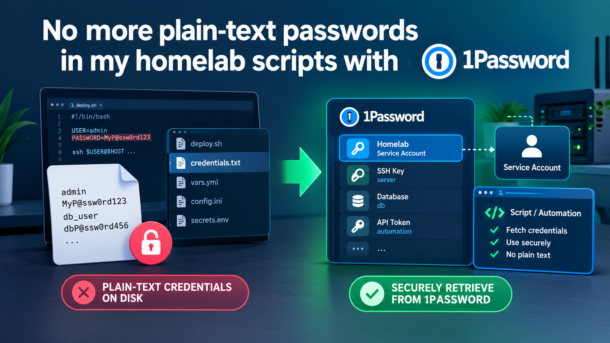
Root passwords for all my ESXi hosts and the vCenter SSO administrator, in plain text, on disk. I know! 😀
The Windows VM has encrypted disks, no shares, but again this does not help me against anything that runs on that VM, a backup of the file, or me accidentally committing it to Git one day.
For my interactive scripts I already use 1Password so why not for these too? By interactive I mean that when I deploy something with Terraform, for example, there’s a pop-up to authenticate with 1Password so it can pull the credentials for the script.
Why the normal 1Password CLI doesn’t work here
The 1Password CLI (op) is great for interactive use. With the desktop app integration, running op read op://vault/item/password pops up a Windows Hello or password prompt, and you’re in.
That’s a problem for a scheduled task, because at 07:10 in the morning there’s nobody sitting in front of the screen to approve that prompt. The task would just hang or fail eventually.
After browsing through the 1Password documentation, I found out that this is what Service Accounts are for. A service account is a 1Password identity with its own token. Set the token in the OP_SERVICE_ACCOUNT_TOKEN environment variable and op uses it directly: no desktop app, no prompts, no biometrics. Pretty cool actually.
The best part is that this just works with a Personal or Families plan, like mine. I thought that this advanced functionality would be only available to business plans, but no!
The master plan
- Put only the credentials the scripts need in a dedicated vault.
- Create a service account with read-only access to that vault only.
- Store the service account token on the server, encrypted with Windows DPAPI, so only the account that runs the scheduled tasks can decrypt it.
- Write a small PowerShell function, Get-LabCredential, that fetches a login from 1Password and returns a PSCredential.
- Move the (non-secret) hostnames into a config file and delete the plain-text variables.
The result: there’s still one secret on disk (the token), but it’s encrypted and tied to one user on one machine. It only gives read access to the items in the dedicated vault, and I can revoke or rotate it centrally in 1Password.
Beautiful right? I must admit, this took some time to research, but luckily I have Claude Pro which helped me a lot in connecting the dots and providing me with the plan to set it all up successfully.
Step 1 – Create a dedicated vault with items
At my first attempt, I created a service account with read access to an existing vault where all my homelab credentials are stored. It did work right away, but when I tested listing the items I also noticed that the Service Account was able to see all 100+ items in there. Not just my ESXi and vCenter logins, but also my AWS root account, Azure tenant admins, Cloudflare, GitHub, S3 keys, NAS encryption keys…
Imagine if that token ever leaked, all of that would be exposed. Not cool!
To mitigate that, I started from scratch:
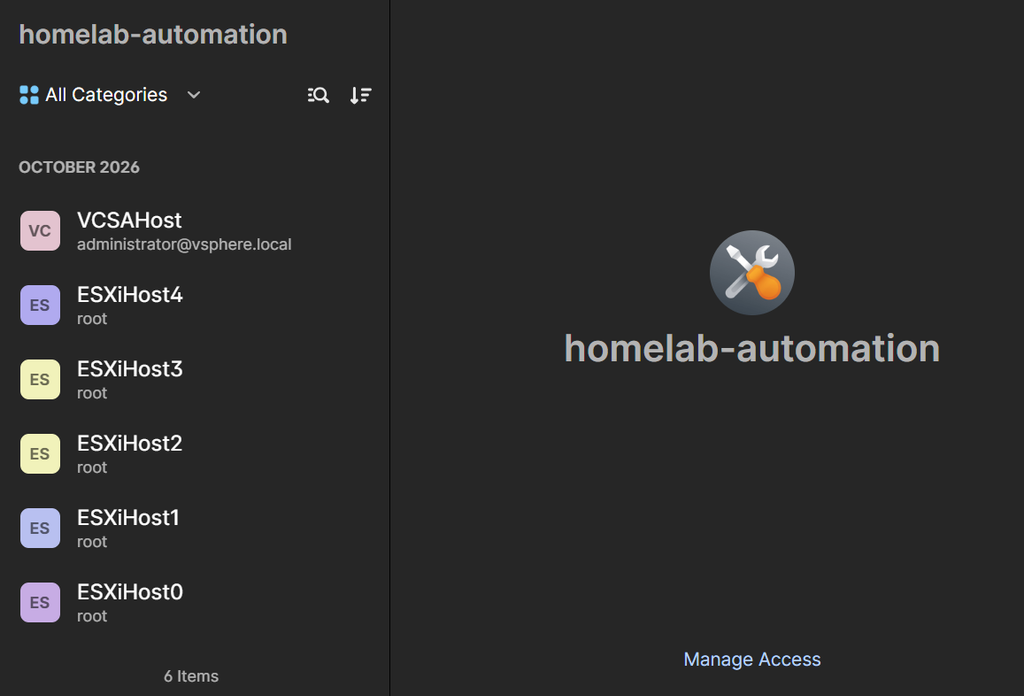
- I created a new vault: homelab-automation.
- I copied in only the logins the scripts need: the ESXi hosts and vCenter.
- I named each item after the host it belongs to: ESXiHost0 to ESXiHost4 and VCSAHost. That makes the mapping in the scripts trivial (more on that below).
- I created a new service account for that vault and deleted the initial one.
Note that a service account’s vault access and permissions can’t be changed after it’s created. If you need to change them, you create a new one.
The result you can see below: A homelab-automation vault with 6 items in there.
Step 2 – Create the service account
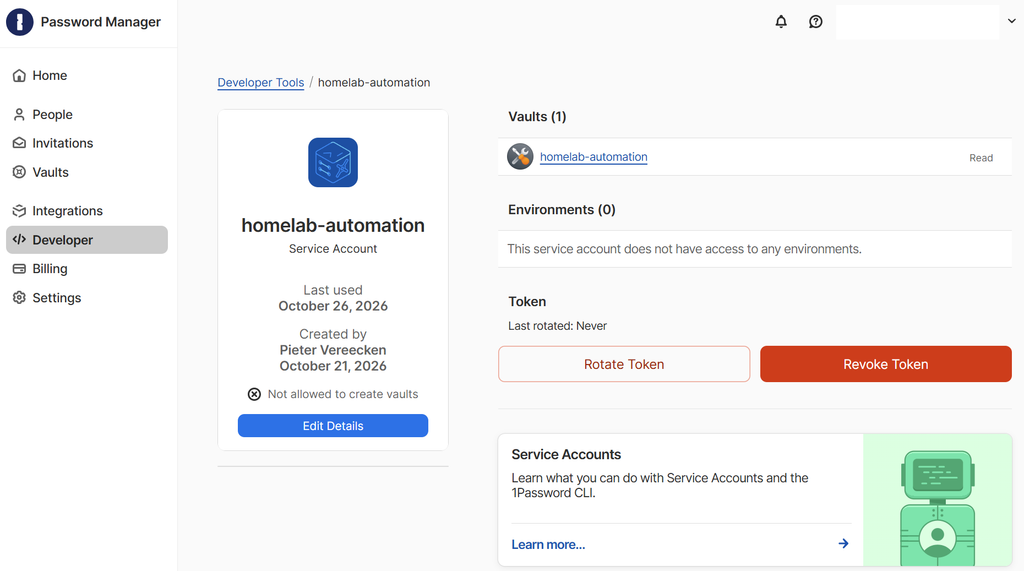
Go to 1Password.eu (or 1Password.com depending on where your account is hosted), log in to your account and go to Developer → Service Accounts and create a new one:
- Name: homelab-automation
- Vault access: homelab-automation, read only
- No permission to create vaults
At the end, 1Password shows the service account token once so save it right away. I stored it as an item in my private vault, so I can always recreate the token file.
Below you can see what it looks like on the website:
A few things to know are:
- Service accounts can’t access your built-in Private/Personal vault. You need a separate vault anyway.
- As I mentioned earlier, you don’t need a business plan: I’m on 1Password Families, and service accounts are available there.
- You can also create a service account using the CLI:
op service-account create "homelab-automation" --vault "homelab-automation:read_items"Step 3 – Store the token securely on the server (DPAPI)
Now the token needs to get onto my VM that runs the scheduled tasks. Putting it in a plain-text file would just move the problem. To do so I use Windows DPAPI through Export-Clixml:
Read-Host 'Paste service account token' -AsSecureString | Export-Clixml E:\Homelab\op-token.xmlWhen you export a SecureString with Export-Clixml on Windows, it’s encrypted with DPAPI. That means that only the same user account on the same machine can decrypt it and a copy of the file on another machine, or read by another user, is useless. That comforts me a little bit!
Important: run this command as the account your scheduled tasks run as. In my case the tasks run under my own account, so I simply ran it in my own session. The token never shows up on screen or in the shell history, because Read-Host -AsSecureString hides the input.
For the “op” command to run, you need 1Password CLI v2.18 or later for service accounts. You can easily install it by running the following command in a PowerShell window:
winget install AgileBits.1Password.CLIIn case you do not have winget, install it first as it makes updating more convenient later.
The commands to test in a PowerShell window:
$env:OP_SERVICE_ACCOUNT_TOKEN = [Net.NetworkCredential]::new('', (Import-Clixml E:\Homelab\op-token.xml)).Password
op whoami          # User Type: SERVICE_ACCOUNT
op vault list      # should only show homelab-automation
Remove-Item Env:\OP_SERVICE_ACCOUNT_TOKEN
Example output:
# Example output from my lab for the lines with "op"
op whoami          # User Type: SERVICE_ACCOUNT
# returned:
URL:               https://accountname.1password.eu
Integration ID:    ABCDEFG123456HIJKL7890
User Type:         SERVICE_ACCOUNT

op vault list      # should only show homelab-automation
# returned:
ID                            NAME
qwe123rty456yui789iop012as    homelab-automation
If op vault list shows more than the one vault you expect, stop and fix that first (see step 1).
Step 4 – Put it in a PowerShell module for reuse
This step is probably optional, but since I use this in a few scripts and will in many more, a module makes reuse much easier and cleaner. My scripts already share a PowerShell module (homelab.psm1), so I added both functions listed below to it:
# Read a login (username + password) from 1Password as a PSCredential.
# Uses the 1Password service account token in $TokenFile, encrypted with DPAPI so only
# the account that created it can read it on this machine. Runs unattended, no prompts.
# Create/replace the token file (as the account the scheduled tasks run as):
#   Read-Host 'Paste service account token' -AsSecureString | Export-Clixml E:\Homelab\op-token.xml

$credentialCache = @{}
Function Get-LabCredential {
    param(
    [Parameter(Mandatory=$true)]
    [String]$Item,
    [String]$Vault = "homelab-automation",
    [String]$TokenFile = "E:\Homelab\op-token.xml"
    )

    if ($credentialCache.ContainsKey("$Vault/$Item")) { return $credentialCache["$Vault/$Item"] }

    if (-not (Get-Command op -ErrorAction SilentlyContinue)) { throw "1Password CLI (op) not found in PATH." }

    # Only expose the token to this op call, never leave it in the environment
    $env:OP_SERVICE_ACCOUNT_TOKEN = [Net.NetworkCredential]::new('', (Import-Clixml $TokenFile)).Password
    try {
        $fields = op item get $Item --vault $Vault --fields label=username,label=password --reveal --format json | ConvertFrom-Json
        if ($LASTEXITCODE -ne 0 -or -not $fields) { throw "Cannot read item '$Item' from 1Password vault '$Vault'." }
    }
    finally {
        Remove-Item Env:\OP_SERVICE_ACCOUNT_TOKEN -ErrorAction SilentlyContinue
    }

    $user = ($fields | Where-Object label -eq "username").value
    $password = ($fields | Where-Object label -eq "password").value | ConvertTo-SecureString -AsPlainText -Force
    $credentialCache["$Vault/$Item"] = [pscredential]::new($user, $password)
    return $credentialCache["$Vault/$Item"]
}
A few design choices worth pointing out:
- The token only exists in the environment for the duration of the op call. The finally block always removes it, even if op fails. That matters when you run a script from your own terminal: the token doesn’t stay behind in your session.
- It returns a PSCredential, not a plain-text string, so Connect-VIServer -Credential can use it directly.
- Results are cached per run. Some of my scripts connect to vCenter twice; the second time it doesn’t call 1Password again. The first lookup takes about 2 seconds, cached lookups take no time.
- It fails loudly. If the token is revoked or an item is missing, the script stops with a clear error in the log (Cannot read item ‘VCSAHost’ from 1Password vault ‘homelab-automation’), and the scheduled task shows up as failed.
The connect helper now takes a credential instead of a username and password:
# Connect to an ESXi host or vCenter. With -TimeoutMinutes it keeps retrying,
# e.g. while vCenter is still booting. Returns $true when connected.

Function Connect-LabServer {
    param(
    [Parameter(Mandatory=$true)]
    [String]$Server,
    [Parameter(Mandatory=$true)]
    [pscredential]$Credential,
    [int]$TimeoutMinutes = 0
    )

    $deadline = (Get-Date).AddMinutes($TimeoutMinutes)
    while ($true) {
        Set-LogMessage "Connecting to $Server ..."
        try {
            Connect-VIServer -Server $Server -Credential $Credential -ErrorAction Stop | Out-Null
            return $true
        }
        catch {
            if ((Get-Date) -ge $deadline) {
                Set-LogMessage "Cannot connect to ${Server}: $($_.Exception.Message)"
                return $false
            }
            Set-LogMessage "$Server not ready yet, retrying in 30 seconds ..."
            Start-Sleep -Seconds 30
        }
    }
}

Function Disconnect-LabServer {
    Disconnect-VIServer -Server * -Force -Confirm:$false -ErrorAction SilentlyContinue
}
The other functions listed here (Set-LogMessage, Start-LogTranscript, Test-LabHost, Start-LabVM and Write-LabSummary) are other small helpers in my log.psm1/homelab.psm1 modules. They are not really needed to follow along here, but I do use them.
Step 5 – Hostnames in a config file
All passwords are now pulled from 1Password. The only things left in variables.ps1 are the hostnames. Those aren’t really top secret, so I moved them into a PowerShell data file next to the scripts called homelab.config.psd1. Probably it would make more sense to also store them in 1Password in a separate Text field so that everything is maintained from a single source of truth. I thought of that only after creating all this, so probably that’ll be next in my plan for updating this further!
# Hostnames for the homelab start/stop scripts.
# Credentials are not stored here: they come from 1Password (vault homelab-automation),
# with one item per host using the same name as the key below. See Get-LabCredential.
@{
    ESXiHost0 = "esx01.lab.sddc.be"    # home VMs
    ESXiHost1 = "esx02.lab.sddc.be"    # cluster A
    ESXiHost2 = "esx03.lab.sddc.be"    # cluster A
    ESXiHost3 = "esx04.lab.sddc.be"    # cluster B
    ESXiHost4 = "esx05.lab.sddc.be"    # cluster B
    VCSAHost  = "vcenter.lab.sddc.be"
}
The scripts load it like this:
$lab = [pscustomobject](Import-PowerShellDataFile (Join-Path $PSScriptRoot "homelab.config.psd1"))Two small things that make this nicer than dot-sourcing a .ps1:
- Import-PowerShellDataFile only reads data. It can’t execute code, unlike . variables.ps1, which runs whatever is in that file.
- Converting it to a [pscustomobject] combined with Set-StrictMode -Version Latest means a typo like $lab.ESXiHots1 stops the script with an error. With a plain hashtable, or a loose variable, it would silently be $null, and you’d be connecting to nothing.
Step 6 – Using it in my scripts
Before leveraging 1Password, my scripting life was way easier as you can see below. But it was also very risky business!
. "E:\Homelab\variables.ps1"
Connect-VIServer -Server $ESXiHost0 -User $ESXiUser0 -Password $ESXiPass0
After integrating with 1Password and pulling the secure credentials instead of storing them locally:
$lab = [pscustomobject](Import-PowerShellDataFile (Join-Path $PSScriptRoot "homelab.config.psd1"))
Connect-LabServer -Server $lab.ESXiHost0 -Credential (Get-LabCredential ESXiHost0)
Because the 1Password item names match the config keys, it’s always $lab.<Name> and Get-LabCredential <Name>.
Here’s my complete (and shortest) script. It’s the one that boots up my home VMs every morning at 07:10.
Set-StrictMode -Version Latest

$log_name = "homelab-start"
$StartTime = Get-Date

# Import modules (relative to this script, not the working directory)
Import-Module (Join-Path $PSScriptRoot "..\modules\log.psm1") -Force -ErrorAction Stop
Import-Module (Join-Path $PSScriptRoot "..\modules\homelab.psm1") -Force -ErrorAction Stop

# Log: one file per day in E:\Homelab\Logs, kept for 30 days
Start-LogTranscript -Name $log_name

# Hostnames (credentials come from 1Password, see Get-LabCredential)
$lab = [pscustomobject](Import-PowerShellDataFile (Join-Path $PSScriptRoot "homelab.config.psd1"))

# Home VMs on ESXiHost0
if (Test-LabHost $lab.ESXiHost0) {
    if (Connect-LabServer -Server $lab.ESXiHost0 -Credential (Get-LabCredential ESXiHost0)) {
        Start-LabVM -Name "*home_*" -Message "Starting my home VMs ..."
        Disconnect-LabServer
    }
}

Write-LabSummary -Message "Homelab started!" -StartTime $StartTime
Stop-Transcript
Verify before you switch over
Working in backup I learnt to never just switch to something new. Always keep the old scripts/plans in place just in case!
The final thing I wanted to verify was that the items in 1Password were identical to what the scripts used so far. I didn’t want to find out at 07:10 the next morning that I had copied the wrong password into the new vault. With the help of AI, I received a script that compares the passwords and only prints True or False so it never reveals the actual values on screen!
# Comparison script

. "E:\Homelab\variables.ps1"    # the old plain-text file, one last time
$env:OP_SERVICE_ACCOUNT_TOKEN = [Net.NetworkCredential]::new('', (Import-Clixml E:\Homelab\op-token.xml)).Password

$map = [ordered]@{
    ESXiHost0 = @($ESXiUser0, $ESXiPass0)
    VCSAHost  = @($VCSAUser,  $VCSAPass)
    # ... one line per item
}
foreach ($k in $map.Keys) {
    $f = op item get $k --vault homelab-automation --fields label=username,label=password --reveal --format json | ConvertFrom-Json
    [pscustomobject]@{
        Item      = $k
        UserMatch = (($f | Where-Object label -eq 'username').value -eq $map[$k][0])
        PassMatch = (($f | Where-Object label -eq 'password').value -eq $map[$k][1])
    }
}
# Output

Item      UserMatch PassMatch
----      --------- ---------
ESXiHost0      True      True
VCSAHost       True      True
# ... one line per item
Looking good! Only then did I switch over and remove the passwords from the variables.ps1 file.
The result and final considerations
| Before (or Ugly :P) | After (and beautiful!) | |
|---|---|---|
| Passwords on disk | All ESXi root + vCenter admin passwords, plain text | None |
| Secrets on disk | variables.ps1 | One service account token, DPAPI-encrypted |
| If that file leaks | Every password readable | Useless on another machine or account |
| What the secret can access | Everything in it | Read-only, 6 items in 1 vault |
| Changing a password | Edit the file on the server | Update the item in 1Password |
| Revoking access | Change every password | Delete the service account |
| Scheduled tasks | Unattended | Unattended, no prompts |
And the scripts themselves got simpler: no more $ESXiUser3/$ESXiPass3 pairs passed around, just a hostname and the name of a 1Password item.
Now let’s not forget the following considerations as it’s not 100% “perfect” either:
- It’s not “zero secrets on disk”. Something has to authenticate the server to 1Password, so the token is the one remaining secret. DPAPI protects it against copying and against other accounts. Anything that runs as that same user on that machine can still decrypt it. Keep the run-as account’s privileges tight and the vault small.
- The token is tied to one user on one machine. If I rebuild the server or change the account the tasks run as, I must recreate op-token.xml while logged in as the new account. That’s why I keep the token itself in my private vault.
- Least privilege. The scripts still log in as root and [email protected]. A next step would be dedicated vSphere accounts (=service accounts) with a role that can only power VMs and hosts on and off. With 1Password in place, it’s just a matter of changing six items.
It took me a few days of reading up on my options with 1Password, but in the end switching over was fairly easy and especially fun! The best part is that it’s never finished and there will always be room for improvement. But for now I’m good!
Hope this was useful and thank you for reading!