Introduction
As with most features in VBR, I tested out Veeam CDP (=near-zero RPO replication) a long time ago so I didn’t have it in the lab anymore. Then recently I received a request from a customer regarding Universal CDP which made me curious again so I made the plan to redeploy the CDP I/O filter driver again on my cluster.
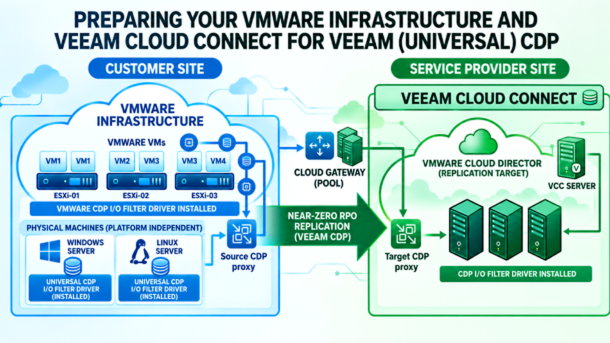
In this blog post, I am describing how I prepared my environment Veeam CDP. In another blog post, I will use this foundation to then run through Universal CDP in combination with Veeam Cloud Connect.
What is generally a fairly easy task, I ran into a few issues, because I did not clean up everything properly from previous deployments. I decided to include all the troubleshooting in this blog post, because I’ve seen similar things in customer environments anyway. It’s rare that you see a totally new infrastructure deployed for it and there will always be something popping up in the production infra.
NOTE: It is important to say that the issues I experienced, were specifically in my lab and it does not mean you will run into these or in any error by default. The point is, that to deploy the I/O filter driver, there are some requirements that must be met before it can be properly installed. Anything that is conflicting, must be taken care of first!
My CDP environment overview
Veeam CDP can only be deployed onto a VMware cluster, not a standalone ESXi host. In my case I have:
- VMware vCenter Server 8.03
- A cluster with 2x ESXi 8.03 hosts
- Each host has a local NVMe datastore and a shared iSCSI-backed datastore cluster hosted on my Synology 1821+.
- Veeam Cloud Connect Server (+ Cloud Gateways, Proxy and Backup Repository)
Nothing too fancy, but the bare minimum to run Veeam CDP.
Before you start
Now, before we go even into the VBR interface, read the Veeam Help Center – Considerations and Limitations page very carefully from A to Z. Most of the issues I ran into with customers, were in fact listed right here. Some key items are:
On the VMware side:
- Check you are on a supported ESXi version.
- Check that all ESXi hosts in the cluster are of the same major version.
- Make sure the target cluster supports hardware versions of VMs on the source cluster (if you plan to protect VMs).
- If you enable VM encryption on VMware side, make sure that the Allow I/O filters before encryption parameter is set to True in the Default encryption properties storage policy component.
On the Veeam side:
- Make sure the Backup Server has at least 16 GB RAM.
- Make sure you configure CDP for one cluster on one Backup Server only, you cannot share CDP clusters.
- When protecting VMs, you can only protect Powered On VMs.
In fact, when writing this article, I configured CDP on the wrong VBR server. To show you how to switch CDP ownership to another VBR server (thus to the VCC server), check out step 11.
On your underlaying infrastructure:
- All components involved (Backup Server, CDP Proxies, VMware vCenter Server and ESXi hosts) must be able to resolve each other’s DNS names. Test it! Test it again! Prove it to me! Otherwise it’ll be another “It’s not DNS, it was DNS” story.
- Are all the required ports opened? Check this section in the Help Center.
Check the design diagrams for your specific deployment:
- VMware Source Cluster to Target Cluster | Diagram.
- VMware Source Cluster to Veeam Cloud Connect with VMware vSphere or Cloud Director | Diagram.
- Any Windows or Linux machine (platform independent) to VMware Target Cluster | Diagram.
In case you want to replicate any Windows or Linux machine to Veeam Cloud Connect, you must check both pages in the Help Center, one for the source machines and one for the target backend in Veeam Cloud Connect.
Useful Veeam Knowledge Base articles I recommend you to check early on:
- KB4168 | VeeamCDP I/O filter cannot be installed “Error: the operation is not allowed in the current state” (=Generally points to DNS/Firewall).
- KB4096 | VeeamCDP I/O Filter Installation Fails With “The agent’s workflow is blocked” Error (=Relevant for vLCM clusters).
Run a few port checks
SSH (Example: Windows CDP Proxy to VBR)
Port open:

	C:\Users\Administrator>ssh -p 33034 192.168.10.23
	kex_exchange_identification: read: Connection reset

	C:\Users\Administrator>ssh -p 443 192.168.10.23
	ssh: connect to host 192.168.10.23 port 443: Connection refused

Netcat (Example: ESXi to VBR)

Port open:
	[root@esxi:~] nc -z 192.168.10.23 33034
	Connection to 192.168.10.23 33034 port [tcp/*] succeeded!
Port closed:	[root@esxi:~] nc -z 192.168.10.23 443
	[root@esxi:~]

PowerShell (Example: Open port on VBR itself)

         netstat -bona

         tnc -ComputerName <FQDN> -Port 33034
Check the vCenter EAM Service
The VIB bundle installation-related communication between hosts and vCenter server are managed by ESX Agent Manager (EAM) service. If EAM service is not healthy and not able to communicate with vCenter magic won’t happen.
Most of the times these communication issues are shown in EAM log | VMware KB.
The test:
- SSH into vCenter
- Use “curl” from vCenter to VBR on port 33034
- Command: “curl http://<vbr-fqdn>:33035/dapi/bundle/8.0.0/13.1.238 –head”
The bundle and its version depends on the VBR version and thus may vary. At the time of writing this article, VBR was on version 13.1.1.
Output (example from my lab)
root@vcenter [ ~ ]# curl http://vbr2.sp.sddc.be:33035/dapi/bundle/8.0.0/13.1.238 --head
HTTP/1.1 200 OK
Content-Type: application/octet-stream
Date: Wed, 30 Sep 2026 13:54:37 GMT
Accept-Ranges: bytes
Content-Disposition: Attachment;filename=veecdp-offline-bundle.8.0.0.zip
When I ran this command at first it failed, because my firewall blocked traffic from my vCenter to my VBR server. Make sure you open the required ports on your firewall before proceeding.
Getting the Cluster Image Compliant
If you already did this, feel free to skip this step.
Before touching CDP, it’s good to have the cluster’s image up-to-date and have the ESXi builds matching. This can easily be done via the Lifecycle Manager.
- Grab the latest and greatest supported image compatible with Veeam and CDP from the Broadcom VMware website.
- Import the full-release ISO- or patch-only offline bundle depot ZIP file
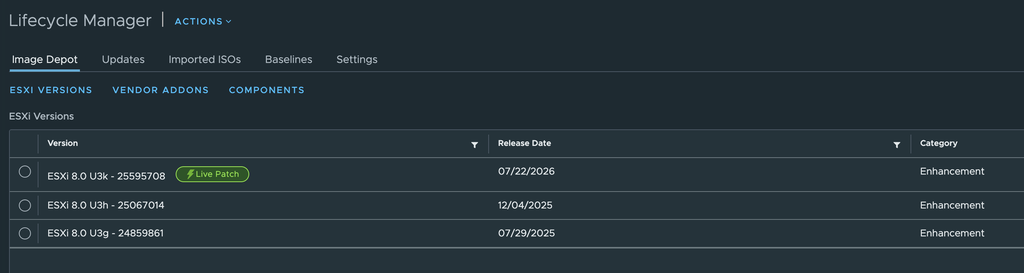
- Checking the official image depot for the latest available version
- At my time of testing and writing, I went with the ZIP bundle for ESXi 8.0.3k
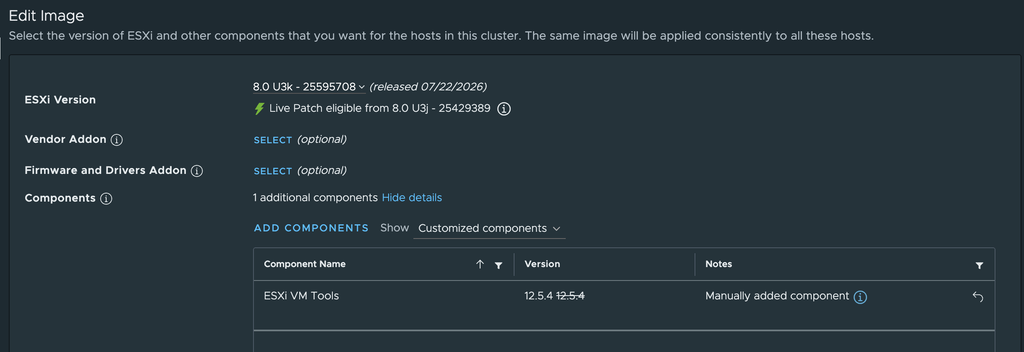
- On the Cluster –> Updates section, edit the image and select the new build
- I prefer to go with the base image and do not use any addons. It’s fine to select specific VMware Tools if needed, but you can also just go with the ones that ship with the image.
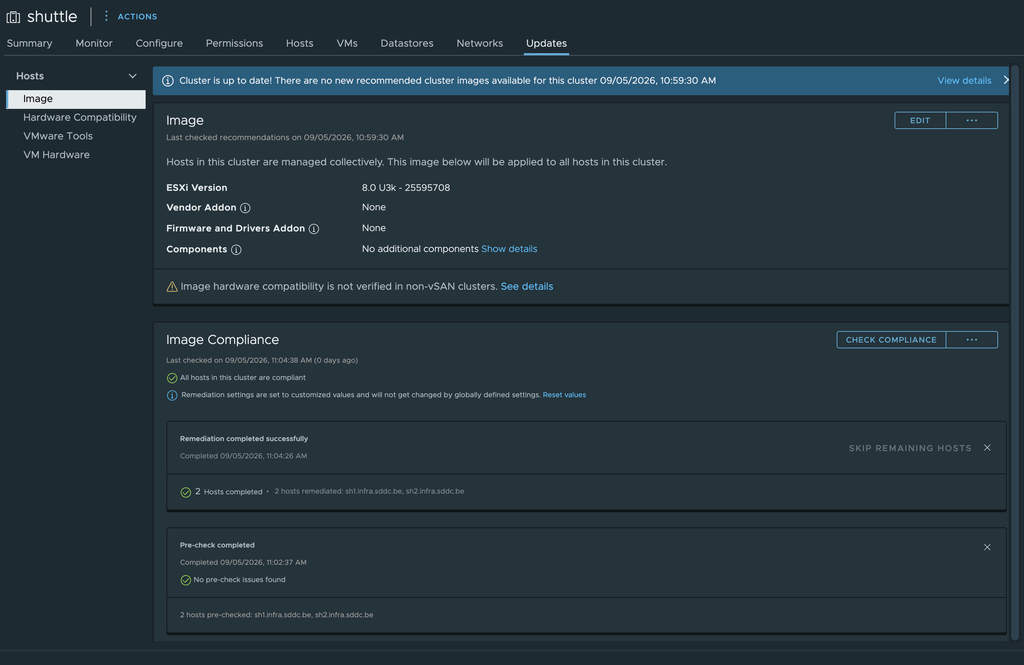
- Now that we’re all set, run check compliance and then remediate. After a few minutes, the cluster and its hosts are compliance. That part’s done!
Refreshing Veeam’s Inventory
It’s always good to run a quick full rescan of the VMware vCenter from within Veeam Backup & Replication to make sure disk/volume inventory is current across all hosts before starting the filter deployment.
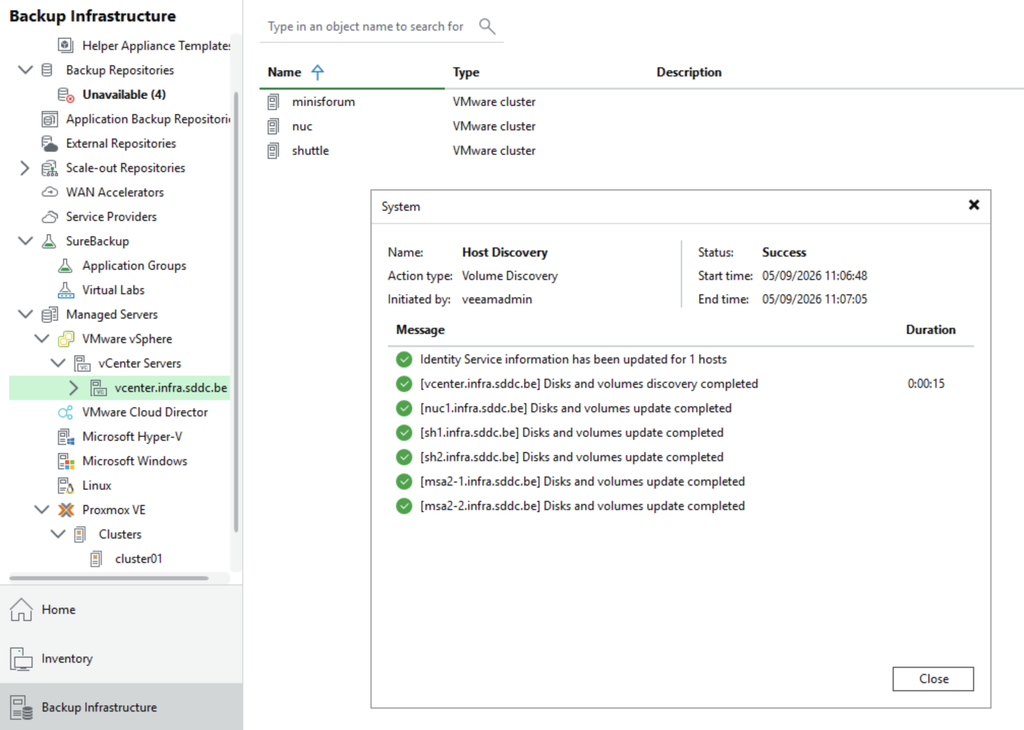
Installing the CDP I/O Filter (First attempt)
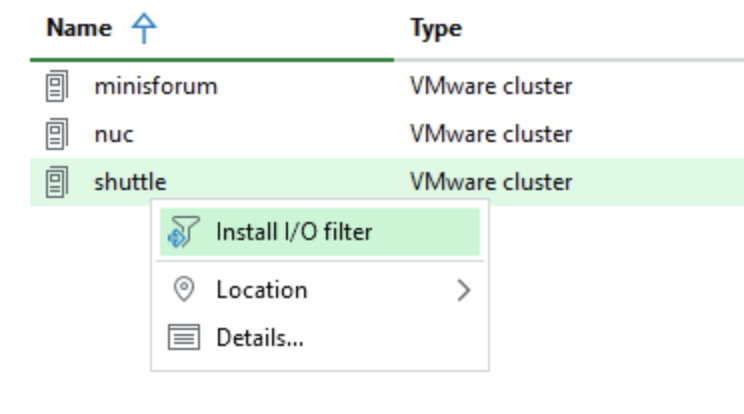
Installing the CDP I/O filter driver is in fact only a few clicks away. Getting there without any errors, is never guaranteed and depending on the infrastructure, can be challenging.
On the desired VMware cluster, right-click → Install I/O filter. In my case that’s my 2-node shuttle cluster.
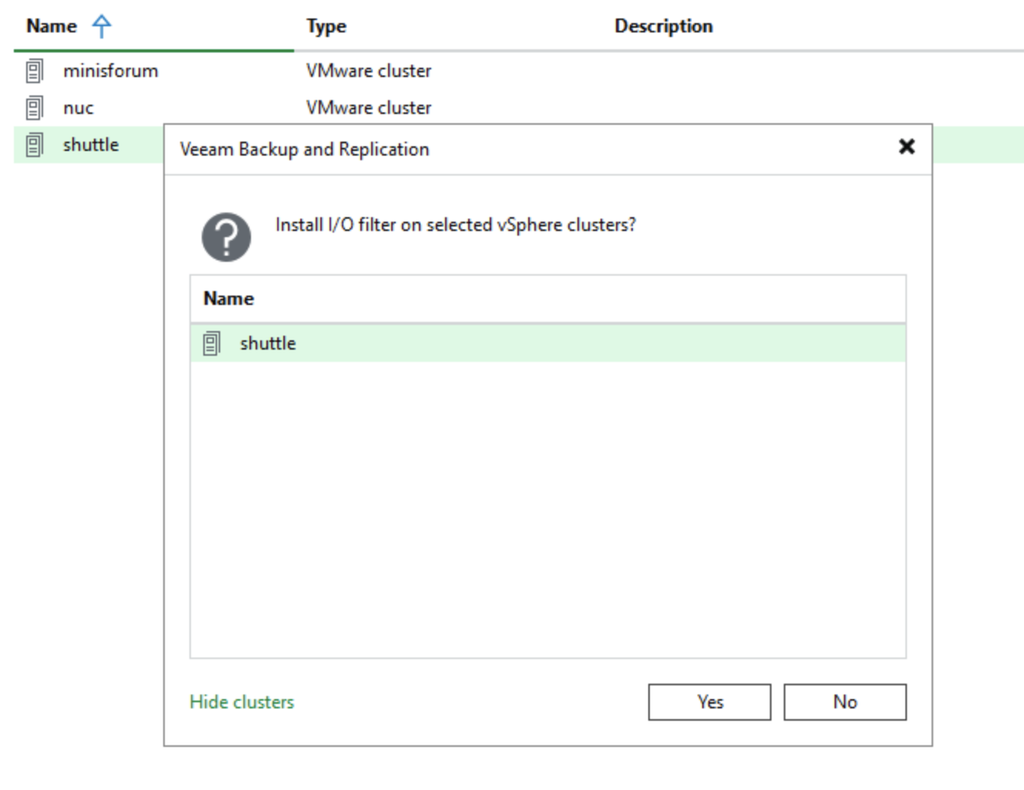
Once you click, it’ll ask you again to confirm. Hit Yes to proceed with the installation.
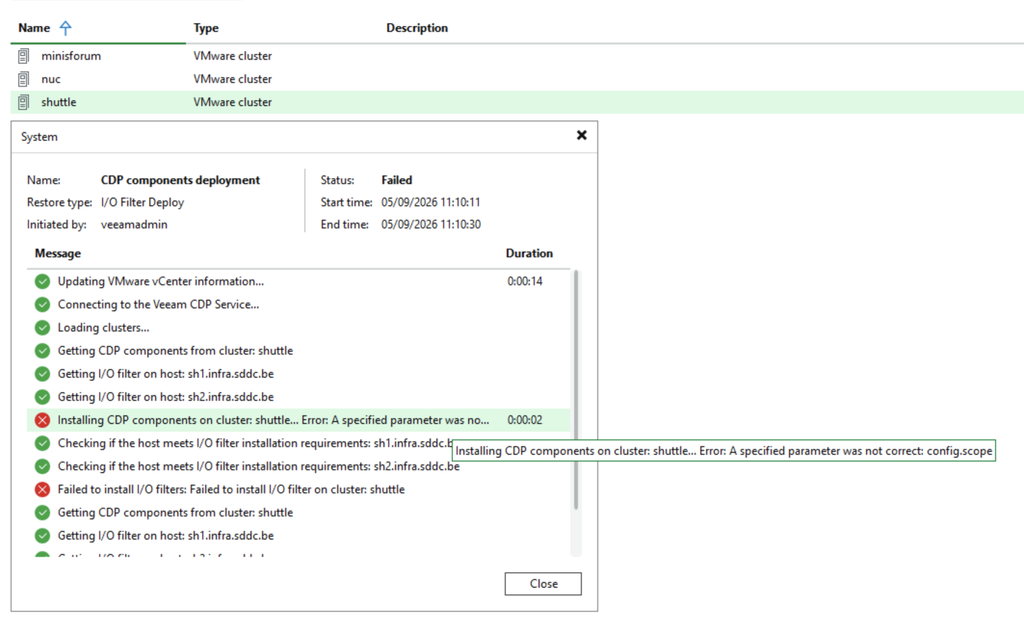
In my case, after a few seconds the result was as follows: it failed.
Honestly, I had never heard of this error before so the troubleshooting journey started here!
05/09/2026 10:12:33 Failed : Failed to perform CDP components deployment
Error: A specified parameter was not correct: config.scope
The same failure was visible directly in vCenter’s own task list which confirmed this wasn’t a Veeam-side issue, but a vCenter/EAM rejection:

Troubleshooting the config.scope error
Note: This section is specific to my environment’s history (a cluster that recently had vSAN removed). I decided to include the diagnostic path as it is generally useful for anyone hitting this error, since VMware’s error message here gives you almost nothing to go on. In case you did not run into any errors, great and just skip tot he next step!
Why this error tells you almost nothing
Per Veeam documentation and forum research: it’s a generic catch-all thrown by the underlying VMware VIB deployment framework (VAIO) for any environmental issue. It’s not something specific to CDP. The real cause has to be found on the vCenter/EAM side, not the Veeam side.
Dead ends checked (in order)
- Image compliance: already fixed in step 4, ruled out.
- Host maintenance mode: both hosts were briefly in maintenance mode during earlier work; confirmed both were fully out before retrying.
- hostd/vpxa health: a known recurring pattern in this environment is EAM/hostd drift after extended uptime, producing generic mutationOperationFailed.unknownReason errors across unrelated operations. Nevertheless I restarted both services on each ESXi sh1 and sh2 as a low-risk test:
/etc/init.d/hostd restart
/etc/init.d/vpxa restart
The actual root cause: a disabled vCLS agency
While in the EAM MOB, something stood out. The cluster’s own vSphere Cluster Services (vCLS) agency was in an Alert state, while the other two clusters were Normal:
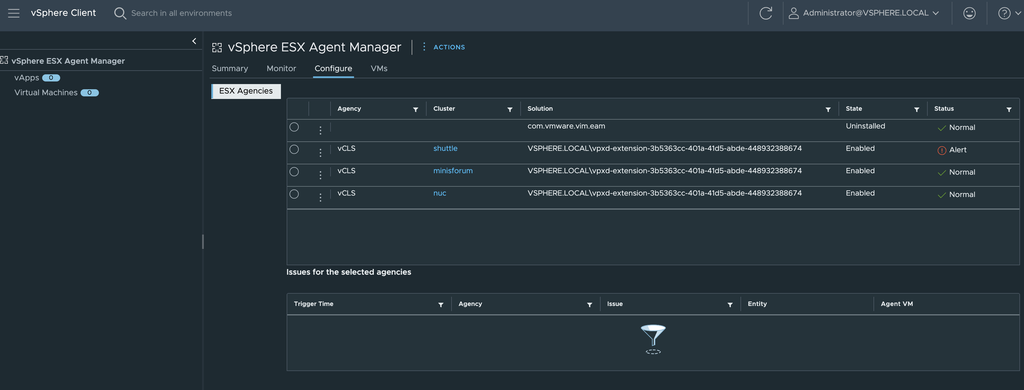
Trying to resolve it directly from the vSphere Client threw the same generic error. At least I felt I was on the right path.
Operation failed!
error.mutationOperationFailed.unknownReason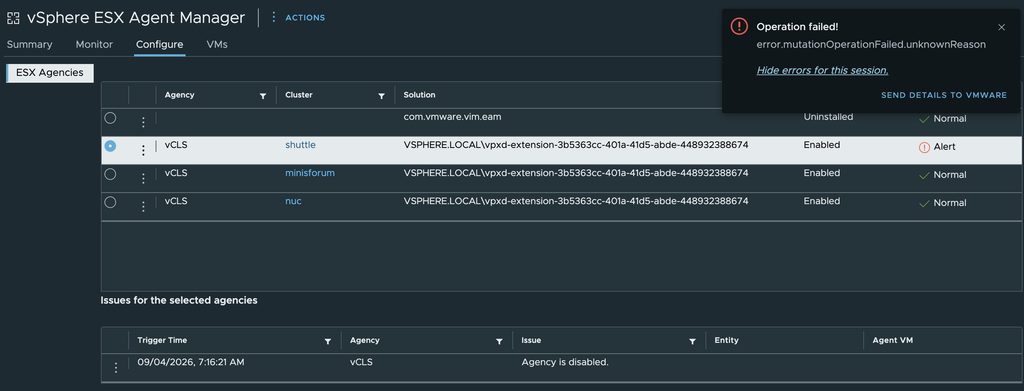
Interestingly, the Cluster Service Status widget reported the vCLS VM as healthy and powered on. A known EAM UI inconsistency where the agency’s tracked alert doesn’t always clear even after the underlying condition resolves:
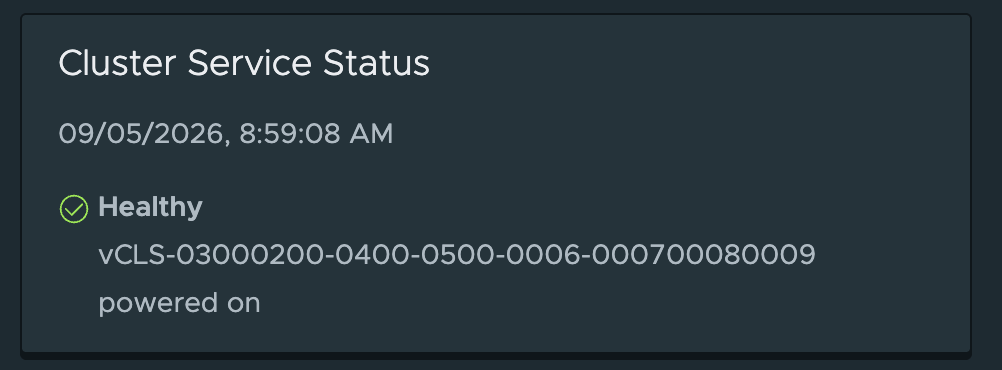
The real explanation: this matches Broadcom KB 344893. Removing vSAN from a cluster takes away vCLS’s placement datastore, which puts the EAM agency into a disabled/alert state. I had intentionally disabled vSAN on shuttle, so this matched exactly.
Since EAM’s vCLS agency and Veeam’s CDP filter agency both operate through the same underlying com.vmware.vim.eam service and the same cluster compute-resource scope, a disabled/broken agency on the cluster was blocking all EAM-mediated operations against it, not just vCLS.
The fix
1. Assign a vCLS-eligible datastore, since vCLS has no automatic fallback once vSAN is gone:
- Cluster → Configure → vSphere Cluster Services → Datastores → Add
- Select any shared storage, in my case I chose the iSCSI datastores shared across both hosts.
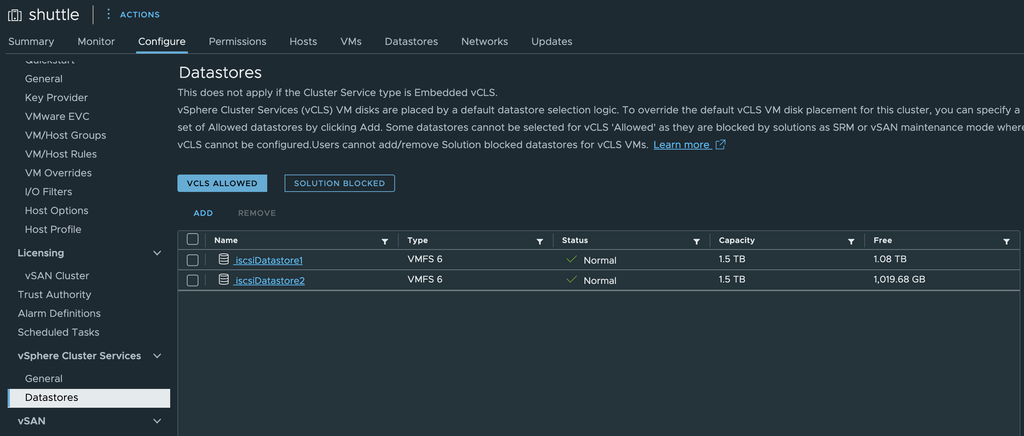
2. Force a vCLS retreat/redeploy to reset agency state against the new datastore:
- Configure → vSphere Cluster Services → General → toggle Retreat Mode on, wait, toggle off
This surfaced a secondary, unrelated problem. ESXi Sh2 briefly went HostNotReachable during the redeploy cycle. Very strange!
General vSAN error. (vmodl.fault.HostNotReachable) {}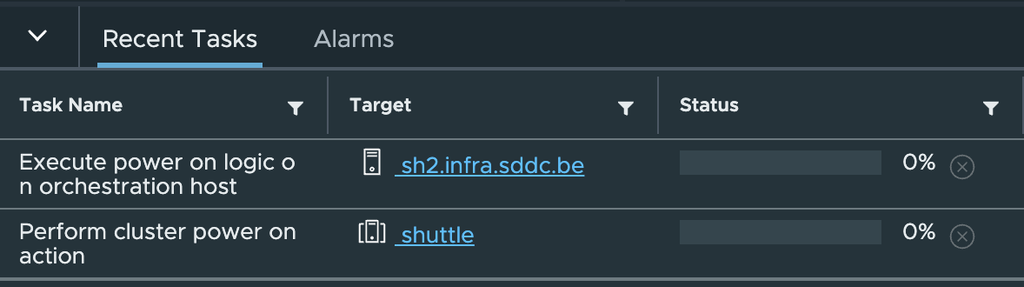
I was able to just reboot the host and it came back up so I could continue the process. Uff!
3. Manually re-enable the EAM agency directly via the MOB, per the Broadcom KB workaround:
- Retrieved the cluster’s MOID from the browser address bar (domain-c24 in my case)
- Retrieved the Server GUID from the vCenter URL
- Opened the EAM MOB:
https://<vcenter-fqdn>/eam/mob/?vmodl=1- Invoked enable on EsxAgentManager with:
<cluster type="ClusterComputeResource" serverGuid="<server-guid>">domain-c24</cluster>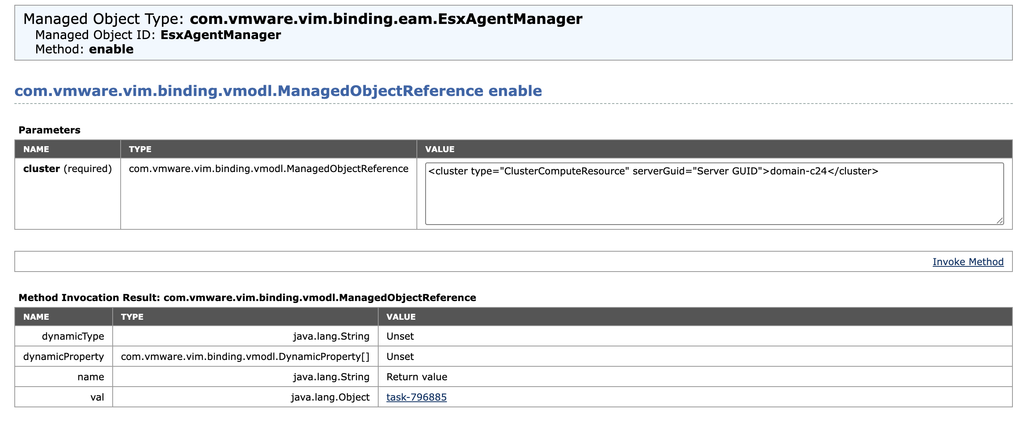

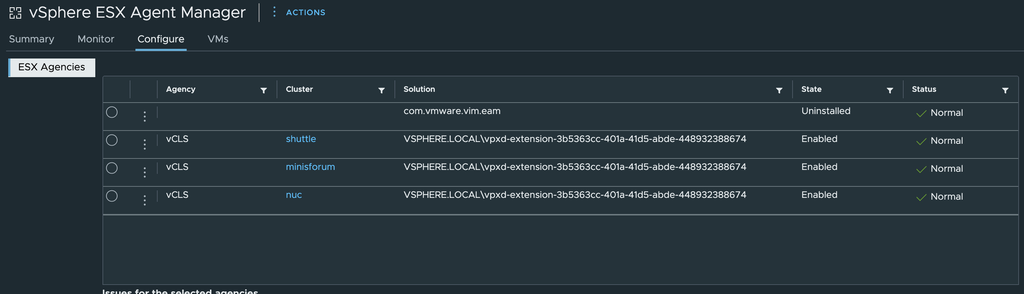
After running this, I saw the result of the vCSL agency jumped back to Enabled/Normal just like the other clusters. That felt great!! Learnt another thing!
Some more vCenter housekeeping
While in the MOB digging around, a couple of unrelated cleanup items surfaced. Why not just make sure my vCenter/cluster is completely clean? It can only be beneficial so here I went:
Removing a stale linked-mode vCenter node
An old decommissioned vCenter (vcenter.lab.sddc.be) was still listed under System Configuration → Nodes, despite no longer existing. I think it was there 3-4 years ago and all this time there in the config, not cleaned up wow!
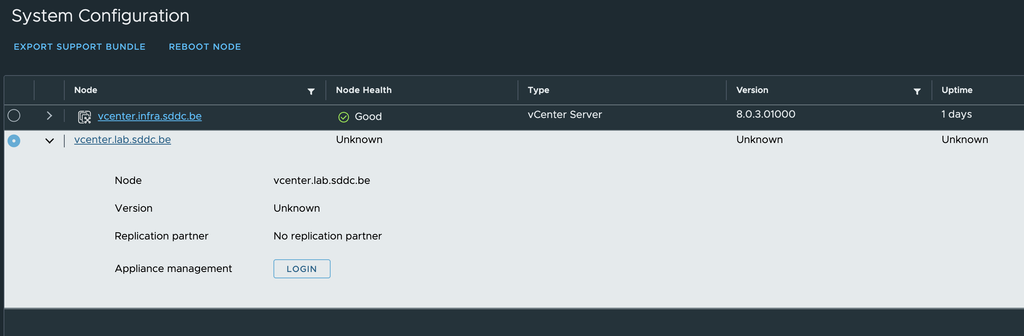
The CLI command “vdcrepadmin -f showpartners” came back empty so it wasn’t a live replication partner, just a lingering federation entry which I fixed with a single line:
/usr/lib/vmware-vmdir/bin/vdcleavefed -h vcenter.lab.sddc.be -u administratorNote: I had to omit the @vsphere.local domain suffix on the username for this to succeed.

Removing a deprecated client plugin
An “Incompatible” plugin, com.vmware.h4.vsphere.client, was showing under Client Plugins.
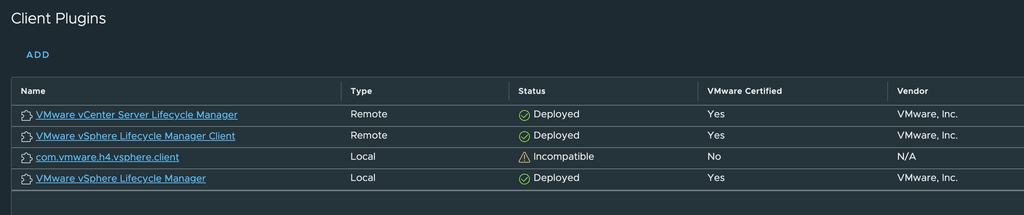
Per Broadcom KB 380699, this is the deprecated vCloud Availability plugin (tied to CVE-2021-21986 / VMSA-2021-0010), registered via the SSO Lookup Service rather than the standard vpxd Extension Manager which is why it doesn’t show up via Get-View ExtensionManager command or a filesystem search. Luckily I managed to remove it using the following commands:
# Find the service ID
/usr/lib/vmware-lookupsvc/tools/lstool.py list \
  --url https://localhost/lookupservice/sdk --no-check-cert \
  --product com.vmware.h4

# Unregister it
/usr/lib/vmware-lookupsvc/tools/lstool.py unregister \
  --url https://localhost/lookupservice/sdk --no-check-cert \
  --id <service-id> --user [email protected] --password '<password>'

# Restart the UI service
service-control --restart vsphere-ui
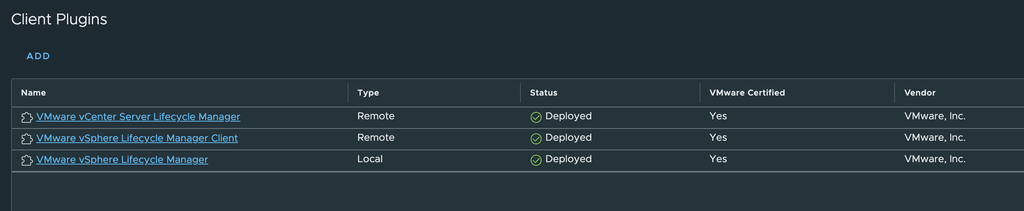
Ok ok, enough troubleshooting here! I did not see anymore strange things in my vCenter so now was a good time to go back and try again to install the CDP I/O filter driver.
Installing the CDP I/O Filter (Second attempt)
With the EAM agency healthy, retried the install. Progress, but a new, more specific error:
Failed : Installing CDP components on cluster: shuttle...
Error: Cannot complete the operation. See the event log for details.
(Failed to modify installation status of I/O filter, VEE_bootbank_veecdp_13.1.238-1OEM.800.1.0.20613240, on all hosts.)

Failed : Host sh1.infra.sddc.be issue: The agent's workflow is blocked until
it's required solutions are re-mediated externally in vSphere Lifecycle Manager

Failed : Host sh2.infra.sddc.be issue: The agent's workflow is blocked until
it's required solutions are re-mediated externally in vSphere Lifecycle Manager
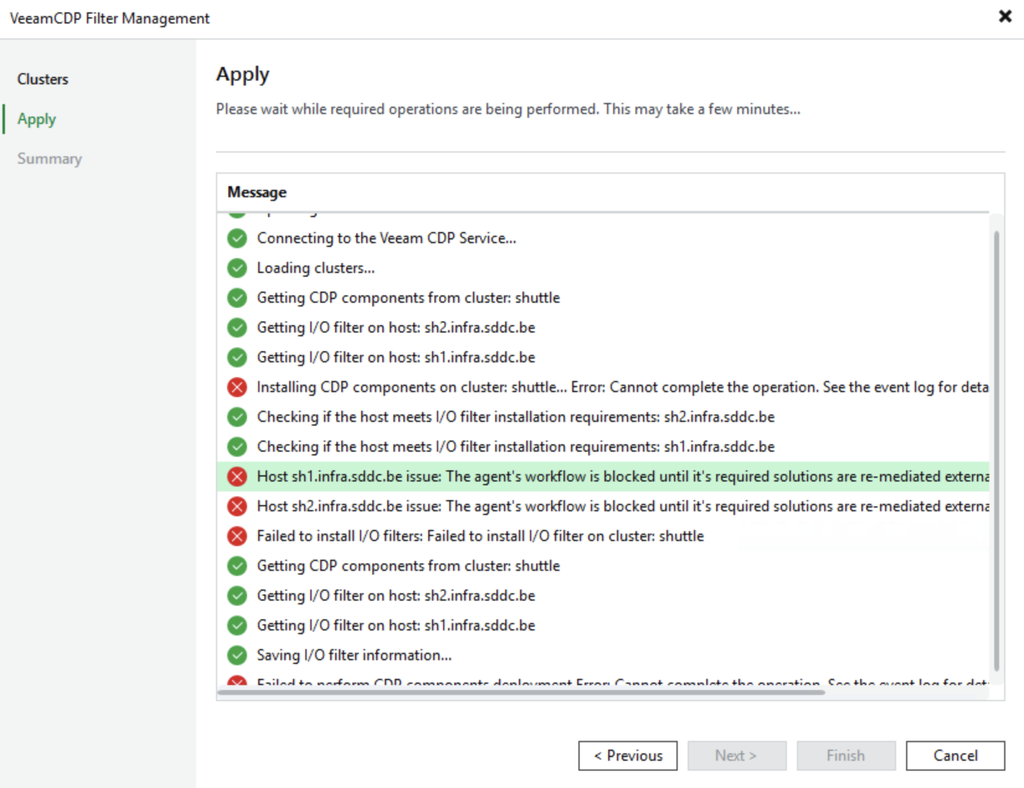
Yes this is an error (clearly with the red cross there!). However, this one is actually a good sign since the filter is now correctly registered with EAM (visible in the cluster’s I/O Filters list):
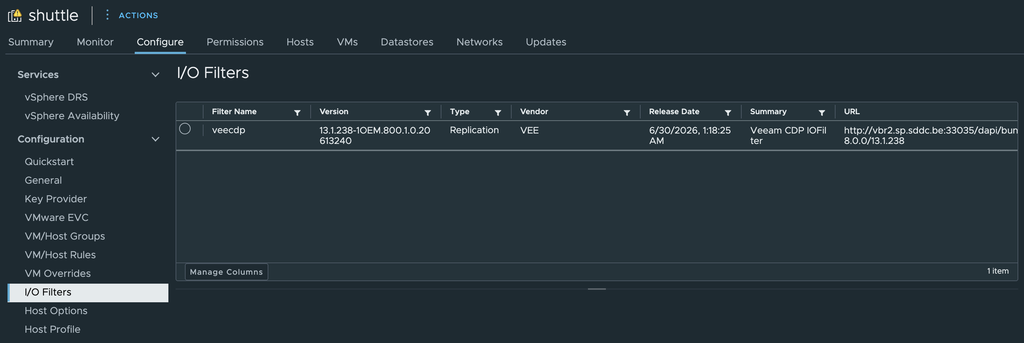
Because my shuttle cluster is an image-managed (vLCM) cluster, EAM can no longer push the VIB directly the old way, but it has to go through vLCM’s own remediation workflow instead.
A note on DNS: the filter’s source URL points at vbr2.sp.sddc.be (my CDP-facing VBR instance). Each ESXi host resolves this independently during remediation to pull the VIB package. It’s worth confirming DNS resolves correctly from the hosts themselves, not just from vCenter, before remediating.
Remediating via vLCM
- Cluster → Updates → Image → Check Compliance
- Confirms remediation is needed to finish enabling the Veeam CDP solution
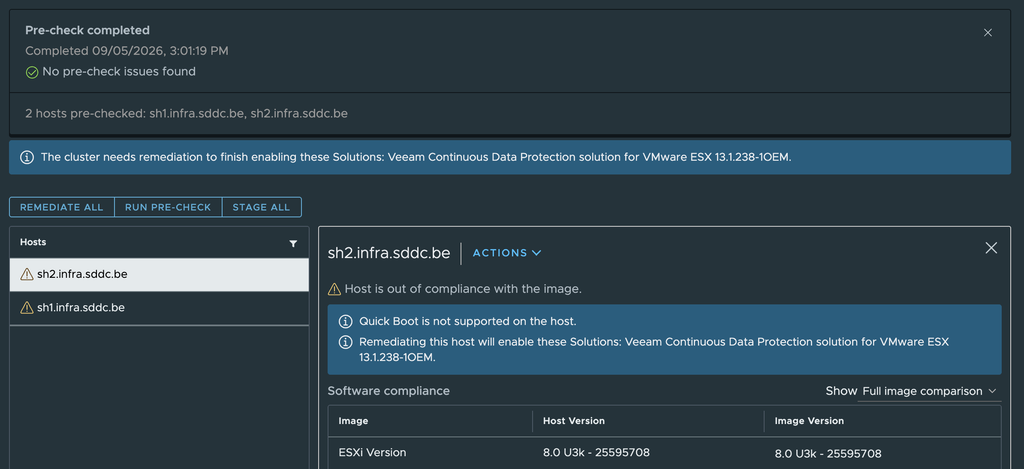
- Remediate All
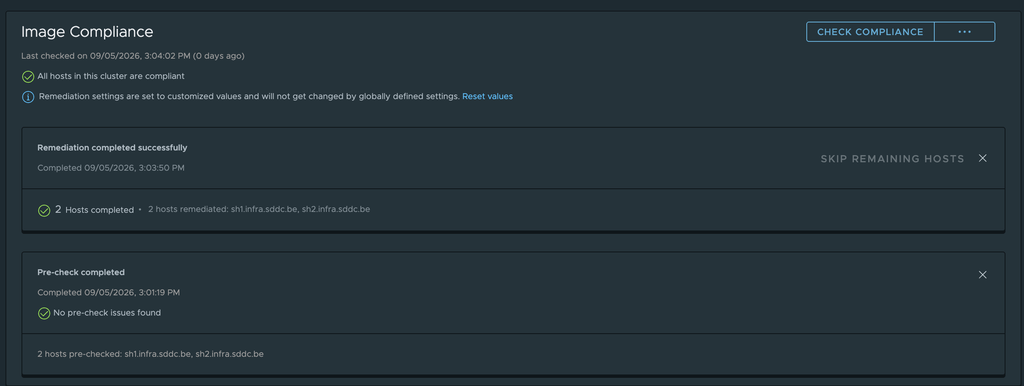
Confirming Success
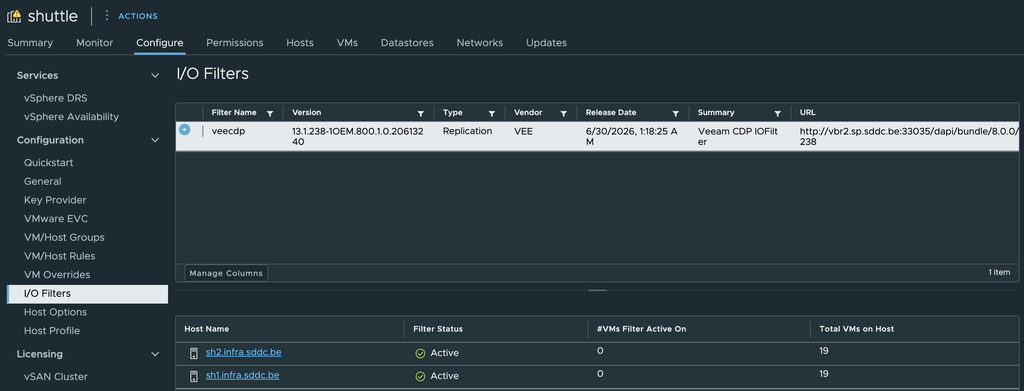
Back in the cluster’s I/O Filters view, veecdp now shows Active on both ESXi hosts sh1 and sh2. Hooray!
Back in the Veeam CDP Filter Management wizard, hitting Refresh confirms it:
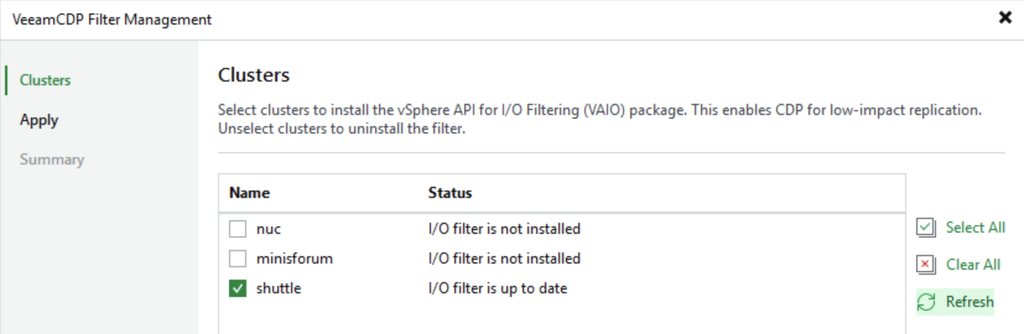
The CDP I/O filter is now installed and active on the ESXi (shuttle) cluster. With the foundation ready, we can now go and proceed with deploying Veeam Agents for Universal CDP or do VM Replication using CDP with VBR.
Moving ownership of the CDP cluster to my VCC Server
As mentioned earlier, I did this entire process to then notice I did it on the wrong VBR server! Not a big deal, the process on either VBR server is completely the same. However, I wanted to prepare my Cloud Connect environment instead of my IaaS VBR environment. Now is the time to go in and switch ownership.
Once I open the wizard on the VCC Server, I notice exactly that:
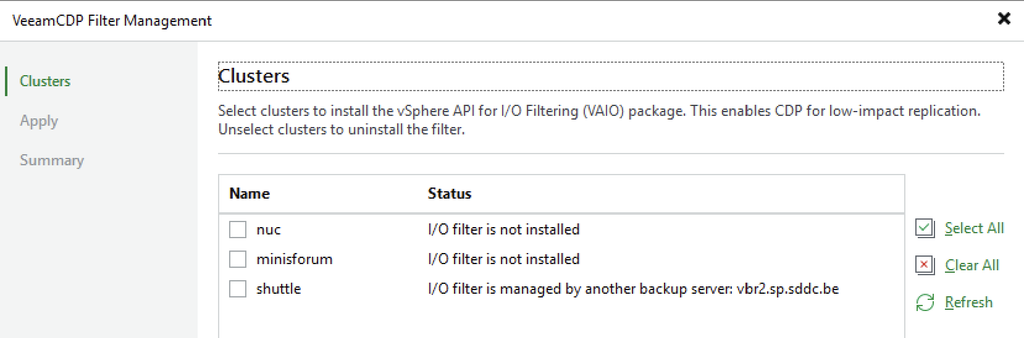
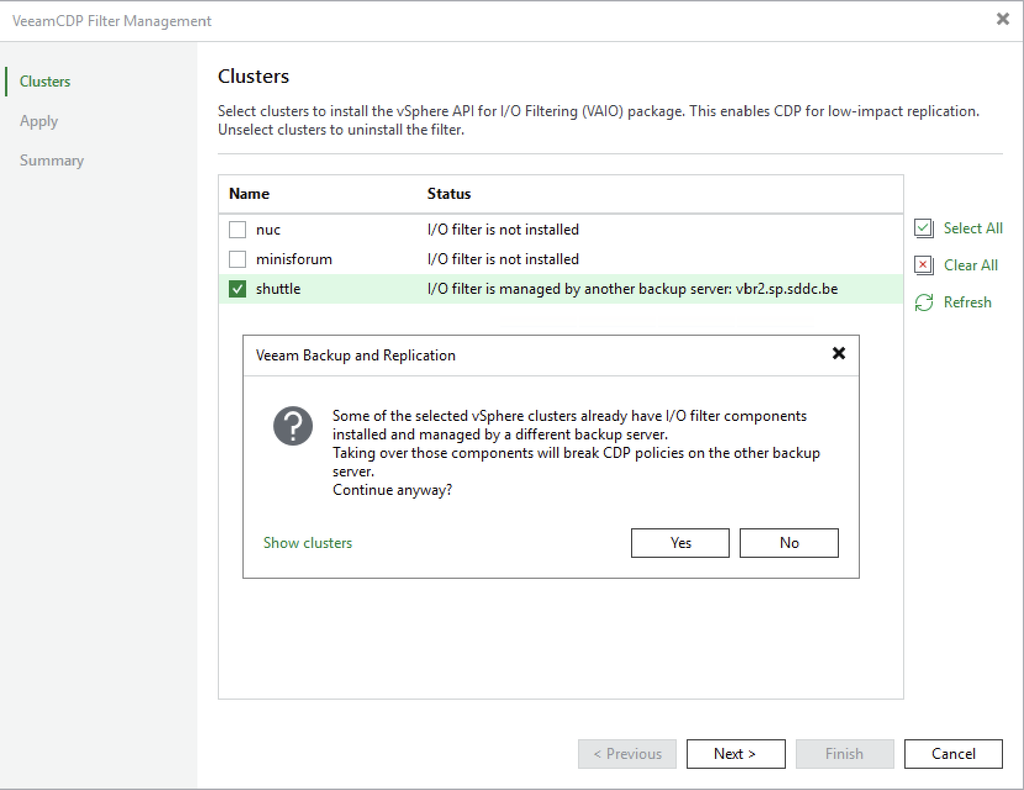
Let’s select the shuttle cluster and press Next. This launches a warning. In this case, I have not configured any CDP policies on the other VBR server so we’re good to go. If you do this in production, make sure to verify this! Then press Yes to continue.
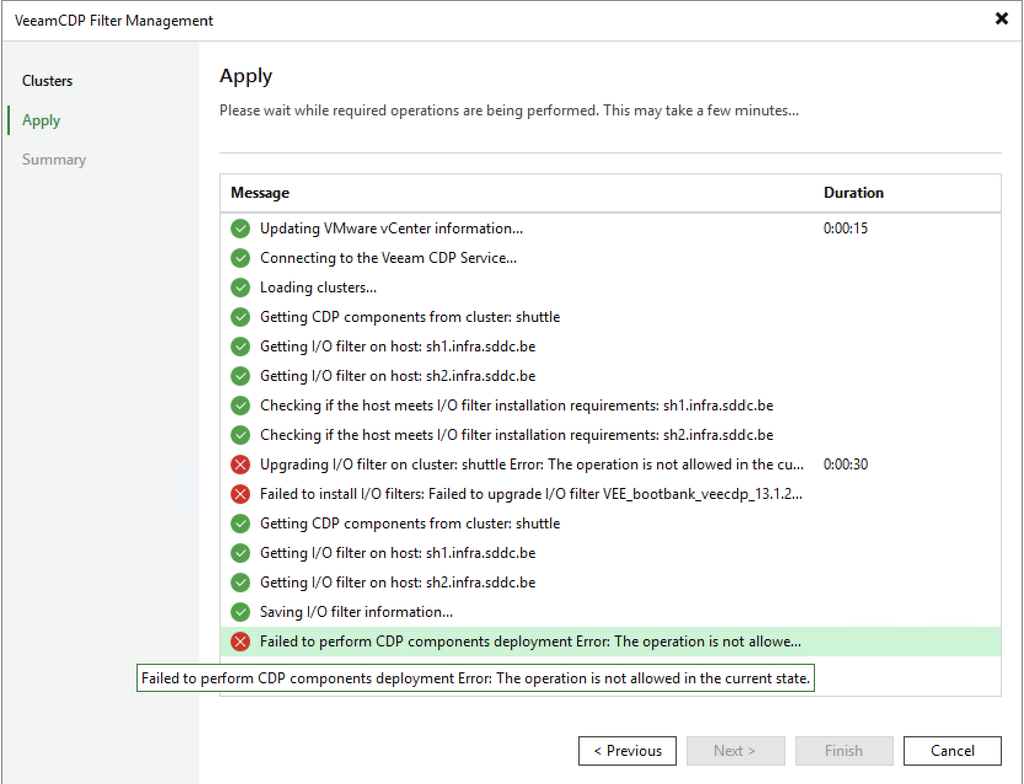
It will ask again to confirm you want to install it on that specific cluster. Once you hit Yes there, it will start taking ownership. Below you can see that it’s not allowed and I admit that the error messages can be a bit unclear. From experience, I know this can mean one of two things:
- If DRS is not possible (e.g. local storage), then you must manually put the hosts in maintenance mode or power off the VMs first.
- Jump right back into vLCM and remediate the hosts just like earlier on in step 4.
In my case I just put my ESXi hosts manually into maintenance mode, relaunched the wizard and BOOM! All good and green now!
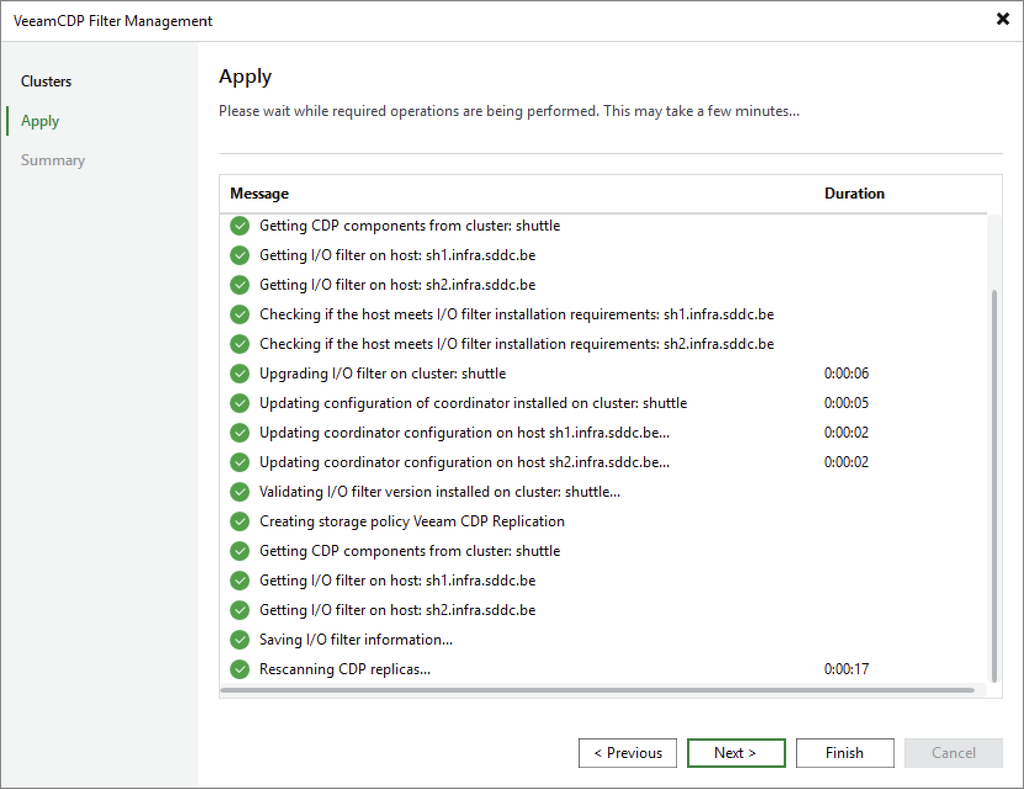
Back in the wizard we can see that everything is fine from a VBR point-of-view:
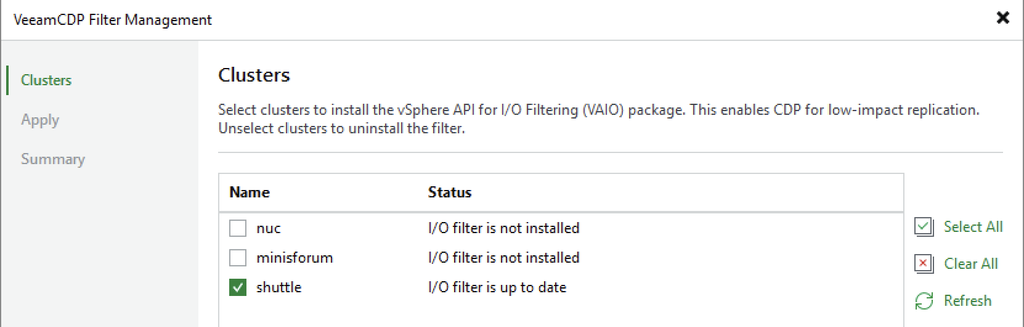
And under vCenter -> Cluster -> Configure -> I/O Filters, we can see that the URL has changed to the VCC Server:
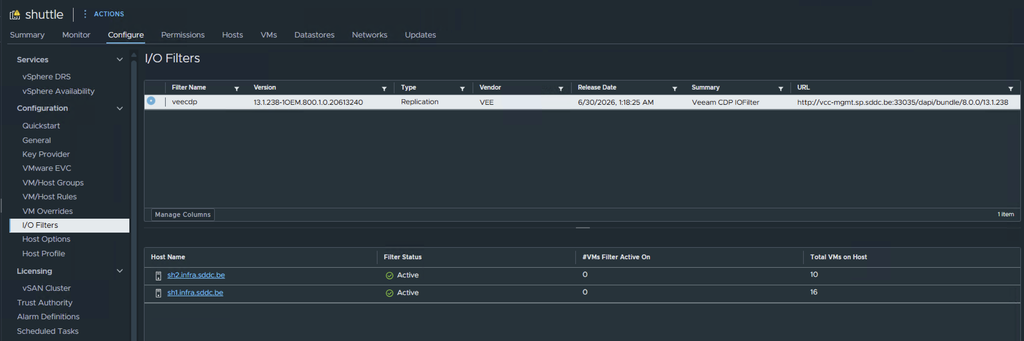
Since I put my hosts manually into maintenance mode, I had to also Exit them manually out of maintenance mode. Do not forget this.
That was pretty easy in the end right?
Uninstalling Veeam CDP
In case you want to remove the CDP I/O filter driver, all you have to do is go back to the original wizard, unselect the cluster and proceed. Beware that the hosts will go into maintenance mode!
The entire process is very well described in the Veeam Help Center, therefore we will not repeat it here.
Logs
Export VBR Logs
At any time, you want to see what exactly is going on during the installation of the I/O filter driver. There is one specific log you should check:
- C:\ProgramData\Veeam\Backup\Utils\I_O_filter_deployment.log
In case you want the full package, for support reasons, then go into the menu (top left) -> Help -> Support Information, and export the entire package:
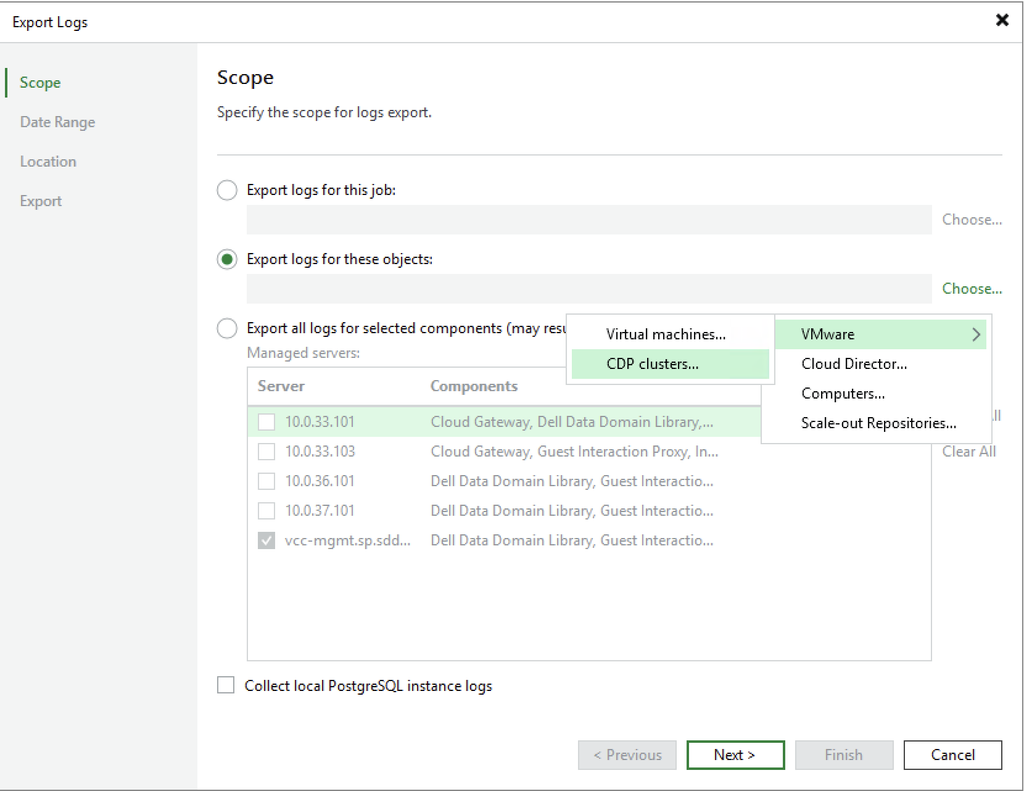
Export System Logs via vCenter
In case Veeam Support asks you, this is the place where you can export them:
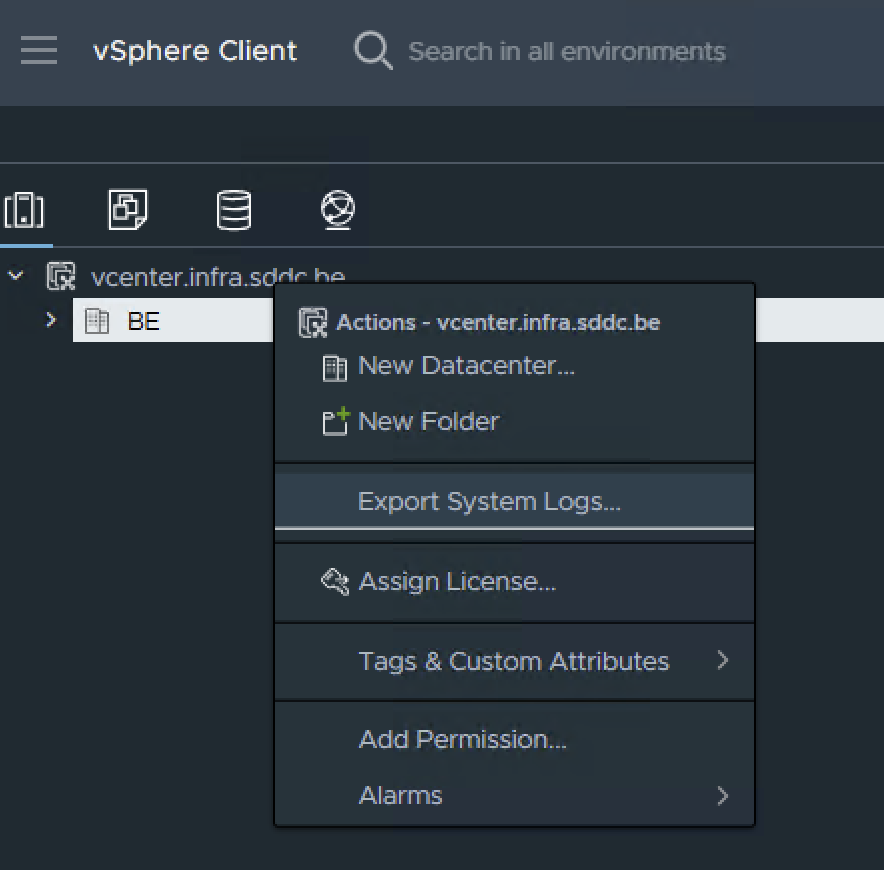
In the next wizard you can select the hosts to include as well as check the option to include vCenter Server and vSphere UI Client logs.
That was quite a chunk of information! Normally it will go pretty smooth, but in case you run into some error messages, I hope that his blog guided you in the right direction to get Veeam CDP going asap.
Thanks for reading and “see” you in the next post!
