Full read time: 20-30 minutes
If you’re a Veeam Cloud & Service Provider (VCSP), the release of Veeam Data Platform v13.1 means it’s time to plan an upgrade across your entire MSP stack. Always upgrade in the correct order to make sure it’s compatible. This guide walks through what’s new in Veeam Service Provider Console (VSPC) v9.3 and Veeam Cloud Connect (VCC) v13.1, and gives you a practical, step-by-step path for upgrading your hosted infrastructure and your customers’ remote installations.
Introduction
Release Timeline
Version 13 is out for nearly a year now with VSA being something totally new. 13.1 packs a ton of new features and improvements and at the time of writing we’re already at 13.1.1:
- September 3, 2025 – Veeam Software Appliance 13.0.0 (Linux), Veeam ONE 13.0.0, and Veeam Service Provider Console 9.0
- November 4–7, 2025 (RTM) – Veeam Software Appliance 13.0.1 (Linux), Veeam Backup & Replication 13.0.1 (Windows), Veeam ONE 13.0.1, and Veeam Service Provider Console 9.1
- November 19, 2025 (GA) – Veeam Software Appliance 13.0.1 (Linux), Veeam Backup & Replication 13.0.1 (Windows), Veeam Agents 13.0.1, Veeam ONE 13.0.1, Veeam Cloud Connect 13.0.1 (Windows), Veeam Service Provider Console 9.1, and more.
- July 29, 2026 (GA) – Veeam Software Appliance 13.1 (Linux), Veeam Backup & Replication 13.1 (Windows), Veeam Agents 13.1, Veeam ONE 13.1, Veeam Cloud Connect 13.1 (Windows), Veeam Service Provider Console 9.3, and more.
- August 12, 2026 – Small, but important fixes bumped into 13.1.1
This guide focuses on the MSP stack top down: VSPC for centralized management, with Veeam Cloud Connect for remote sites, VBR/VSA for IaaS, Veeam ONE for monitoring and reporting, Veeam Backup for Microsoft 365, and Veeam Backup for Public Cloud as connected solutions; plus the remote clients (VBR/VSA, Agents, and so on) running at your customers’ sites.
Before You Begin
Before touching anything, do the groundwork:
- Download the latest images from the Veeam downloads page.
- Download all required licenses from my.veeam.com. Note that VSA v13 requires VDP licensing
- Read the What’s New documents for each product.
- Read the Release Notes in the respective User Guides.
- Check whether you have any hotfixes or private fixes applied to your environment (verify with Veeam Support if needed).
- Ask your Veeam technical pre-sales team for assistance if you’re unsure about anything
(=highly recommended!).
What’s New in VSPC 9.3
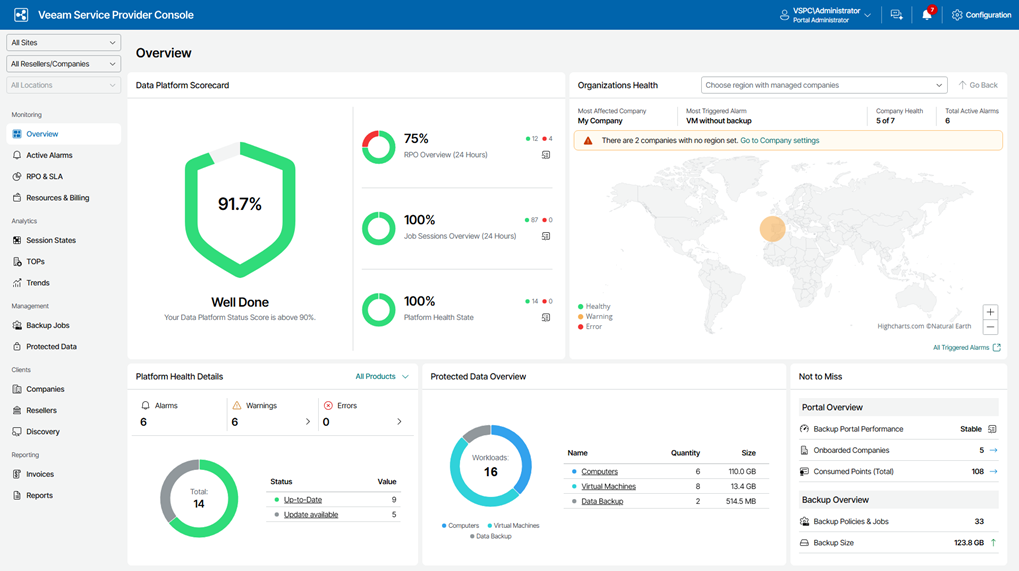
Veeam Service Provider Console 9.3 brings a solid set of improvements for service providers with new major features such as:
- Veeam Backup & Replication Web UI Wizards Support: Support for opening backup and restore wizards in Veeam Backup & Replication directly from the Web UI for additional workload types, including Veeam Agent, NAS, Object Storage, and Nutanix AHV backups.
- Hypervisor Support: Full visibility, monitoring, alerting, billing, and reporting are now available for protected XenServer, XCP-ng, Sangfor aSV, and Red Hat OpenShift Virtualization (coming soon) workloads, broadening platform coverage for service providers managing diverse hypervisor environments.
- AWS Platform for Veeam Vault: Veeam Vault storage is now available on AWS alongside existing Azure-based offerings, enabling service providers to offer customers immutable, air-gapped cloud storage on the AWS platform.
- Veeam Software Appliance Remote Upgrades: Administrators can now perform full remote upgrades and hotfix installations on Veeam Software Appliances directly from the console, eliminating the need for direct server access.
- Enhanced Veeam Backup & Replication Support: Service providers can now open the Veeam Backup & Replication Full Web UI directly from the console. Additionally, replication jobs for Proxmox virtual environments are now visible and manageable in the Veeam Service Provider Console Web UI.
- Enhanced Support for Hosted Environments: A dedicated hosted Veeam Backup & Replication server can now be assigned to a single company, enabling service providers to offer isolated, dedicated backup environments for enterprise and large customer accounts.
- Per-Repository Billing: Repository-based billing support has been introduced for hosted and remote backup servers, enabling service providers to differentiate pricing across storage tiers.
- Backup Deletion from the Console: Administrators can now delete VM and Agent backup data stored in Cloud Connect repositories directly from the Veeam Service Provider Console.
- And more!
A number of smaller but meaningful changes landed across the previous 9.x releases worth mentioning:
- (v9.1) “Login as” functionality. Administrators can log in as another user for easier troubleshooting, configuration validation, and UX testing, without needing to share credentials.
- (v9.1) Synthetic full backups for Linux and Mac Agents, configurable directly from the Cloud Repository step in the policy/job wizard, simplifying configuration and keeping backup chains efficient.
- (v9.0) VCC decoupled. Veeam Cloud Connect is no longer required for hosting-provider use cases, reducing resource consumption and management costs.
- (v9.0) Unified company management. Service providers can consolidate multiple Veeam Cloud Connect tenants under a single company for simplified management, reporting, and billing
- (v9.0) Test Failover option added, with detailed session logging for better visibility and traceability during DR scenarios.
- (v9.x) More workloads supported: Scale Computing HyperCore, plus public cloud coverage for Redshift, RDS, Cosmos DB, and MongoDB/PostgreSQL.
- Security fixes, performance enhancements, and more! Check the full VSPC 9.x What’s New for the complete list.
Official Release Info:
What’s New in VCC 13.1
These top features add even more value to the existing services offered by Cloud Connect:
- Restore encrypted tenant backups on the service provider side – Service providers can now restore encrypted tenant backups directly on the Veeam Cloud Connect server, for tenants that opt-in and set the scope the provider can restore. This enables managed recovery services for tenants and provides an additional disaster recovery option.
- Additional restore options on the service provider side – In addition to already existing capabilities, several new restore capabilities are now available for service providers directly on the Veeam Cloud Connect server: entire VM restore to Nutanix AHV, Proxmox VE, oVirt KVM, Scale Computing HyperCore, and HPE Morpheus VM Essentials, plus Instant VM Recovery to Microsoft Hyper-V
- Malware scan of tenant backups – Service providers can run on-demand Threat Hunter malware scans and YARA rule scanning against tenant backups hosted on the Veeam Cloud Connect server, pinpointing the last clean restore point and enabling pre-recovery malware verification without requiring tenant compute resources.
- Universal CDP for Linux – Enables service providers to offer Disaster Recovery as a Service (DRaaS) to tenants protecting Linux VMs and physical servers, replicating to Cloud Connect targets backed by VMware Cloud Director or VMware vSphere hosts.
- RBAC support for Cloud Connect backups – Custom roles on the tenant Veeam Backup & Replication server now extend their scope to Cloud Connect-hosted backups, so a scoped-role user can restore from backups stored on the service provider as well, giving tenants consistent role-based access across all their backups.
- HPE StoreOnce – Can now be used as Veeam Cloud Connect repository, enabling an additional repository type for an off-site offering for tenants.
A number of great changes landed in the previous 13.0 release worth mentioning:
- The VCC Cloud Portal has been deprecated and removed during the upgrade.
- Universal CDP. Previously CDP was limited to virtual workloads. With Universal CDP, you can now ensure best-in-class RPOs from any virtual or physical Windows workload, with recovery to vSphere or Veeam Cloud Connect.
- Linux-based Cloud Gateway support. Cloud gateways were previously Windows-only; now they can be deployed on Linux, reducing Cloud Connect operational costs.
- Hardened Repository using the Veeam Infrastructure Appliance. A pre-built and pre-hardened Linux Appliance makes deployment easier and faster.
- Immutability improvements for direct backup to Object Storage. The model now protects individual restore points for their retention duration rather than the entire backup chain state, cutting object storage requirements by roughly 40%, PutObjectRetention API calls by 8x, ListBucket API calls by 3x, and total API calls by more than 2x.
- Expanded Archive Tier compatibility. Archive Tier can now be used with any type of Performance or Capacity Tier in a Scale-Out Backup Repository, with all previous platform combination restrictions removed.
- Tape LTO10 support.
- And more!
Official Release Info:
What does the appliance model mean for Service Providers?
The appliance model brings concrete benefits:
- Pre-built, pre-hardened, predictable — quicker customer onboarding and reduced deployment times.
- Optimized costs — a reduced “Windows tax” on OS and MSSQL database licensing.
- Hardware-agnostic — cyber-resiliency in a box, suited to whichever hardware appliance you choose (see the Veeam Ready portal for details).
- Reduced attack surface — a more secure service for your customers.
- Reduced security update overhead — automatic updates from Veeam save on operational overhead.
- Secure, centralized management — via Veeam Service Provider Console v9.x.
- Streamlined web access and SSO integration — easier management and a better end-user experience.
Centralized update management for software appliances gives you patch management across your Veeam infrastructure from one place!
Upgrading Your VeeaMSP Stack
The Recommended Upgrade Order
- VSPC 9.1/9.2 to 9.3 | Upgrade Guide 9.3
- Still on 8.1 or 9.0? Upgrade to 9.1 first asap! | Upgrade Guide 9.1
- Management Agents upgrade automatically once the upgrade has completed
- Supports VSA 13.x (VBR/VBEM) on Linux
- Supports VBR/VCC 12.3.1+ on Windows
- Supports VMware Cloud Director 10.x (up to 10.6)
- Supports Veeam Agents for Windows 6.3.x+ | Linux 6+ | Mac 2+
- Supports Veeam ONE 12.1+
- Supports Veeam Backup for AWS 9+ | Azure 7+ | Google 6+
- Supports Hypervisor Plug-ins VB for Nutanix 6+ | Proxmox VE 1+ | Scale 1+ | OLVM/RHV 5+
- Supports VB365 8+.
- Veeam ONE 12.x+ → 13.1 | Upgrade Guide 13.1
- Supports VBR/VCC 12+
- Supports VB365 v7+.
- Veeam Backup Enterprise Manager 12.3.1+ → 13.1 | Upgrade Guide 13.1
- Supports VBR 12.3+ and VMware Cloud Director 10.4 (up to 10.6, matching VBR).
- Veeam Cloud Connect 12.3.1+ → 13.1 | Upgrade Guide 13.1
- Supports whichever versions your (remote) tenants have installed.
- IaaS or (remote) customer installations
- Veeam ONE
- Veeam Backup Enterprise Manager (Windows/Linux)
- Veeam Backup & Replication (Windows/Linux)
- Veeam Plug-Ins for Enterprise Applications
- Veeam Agents
- Veeam Backup for Microsoft 365
- Veeam Backup for Public Cloud
Verify Cloud Connect Tenant Compatibility
Before you upgrade, confirm your tenants are running versions compatible with v13.1. You have a few ways to check:
- Using VSPC Discovery:
- Supports Backup Agents
- Supports Backup Servers
- Supports (Veeam) ONE Servers
- Supports Microsoft 365 Backup Servers
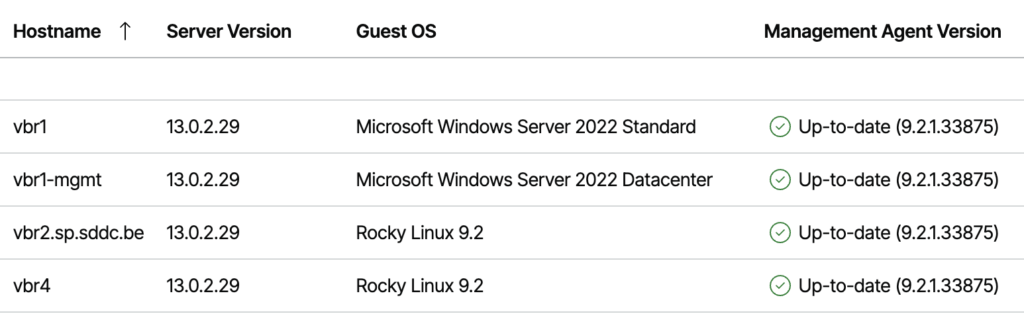
Example of my connected Cloud Connect Server(s) in VSPC

Example of my connected Hosted and Remote Backup Servers (VBR) in VSPC
- If you only have Backup Servers:
- Use VBEM → Configuration → Backup Servers
- Use Veeam ONE: run the Tenants Backup Compatibility Report
- Use PowerShell on a VCC v12 server: there’s a community script that lists tenant versions hitting your Cloud Connect environment
Upgrading VSPC to 9.3 (On Windows)
Step 1: Check prerequisites
- Read all upgrade prerequisites in the User Guide first.
- Guest OS: Windows Server 2012/R2 are no longer supported
- Database: MSSQL 2012 and 2014 are no longer supported
- Application
- Make sure you’re on VSPC 9.1 or higher | Upgrade Guide
- If you’re on 8.1 you must first upgrade to 9.1
Step 2:Verify compatibility
- Confirm VBR/VCC and Agent versions are supported
- Confirm VSPC Server and Web UI certificates are valid and not expired
Step 3: Prepare for the upgrade
- Back up the configuration database | KB1471
- Back up all VSPC machines: Web UI, Server, and Database
- Make sure there’s enough free space for the MSSQL configuration database upgrade
- Disable VSPC maintenance mode
- Close all active VSPC Web UI sessions
Step 4: Perform the upgrade
- Upgrade VSPC Server
- Upgrade VSPC Web UI
- Upgrade VSPC Database (if this doesn’t happen automatically: log in as local administrator → Settings → SQL Server Connection → Upgrade, then toggle Maintenance Mode off)
Step 5: Upgrade additional components (optional)
- Upgrade MSSQL to the latest supported version
- Upgrade the Windows OS to the latest supported version
Verify Management Agents
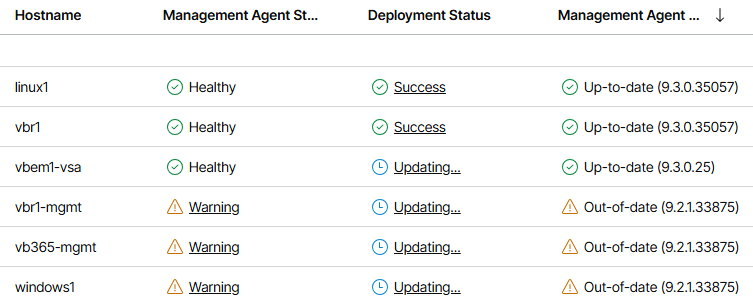
You will see that all Management Agents are now out-of-date and must be upgraded. If you wait a few minutes, you will see that they are automatically starting to upgrade. Wait until the Management Agents of the solutions you are going to upgrade have completed the upgrade and show the Success and Up-to-date status.
Verify Product Updates
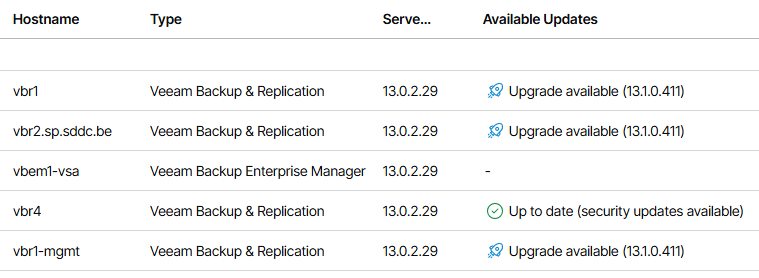
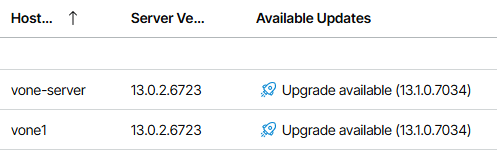
Every connected product will surface its available updates in VSPC after its been updated to 9.3.
Some of them can even be started straight from the Web UI. Now we have a lot of work to do!
Example of my connected Hosted and Remote Backup Servers (VBR) in VSPC 9.3
Example of my connected Hosted and Remote (Veeam) ONE Servers in VSPC 9.3
Upgrading Veeam ONE to 13.1 (On Windows)
Since we must make sure that we can monitor all the connected solutions at all times, we must make sure that Veeam ONE is updated first.
ONE Servers can be upgraded from 12.x+ to 13.0.1 either via VSPC directly or manually.
A key architectural change since v13: Veeam ONE v12.x uses a single database engine (MSSQL). Veeam ONE v13.x uses two: MSSQL for monitoring and PostgreSQL for reporting. The “next, next, finish” upgrade wizard will install PostgreSQL onto the Veeam ONE Server machine for you.
Step 1: Check prerequisites
- Read the upgrade checklist in the Release Notes first
- Guest OS: Windows Server 2012/R2 are no longer supported
- Database (Monitoring): MSSQL 2012 and 2014 are no longer supported
- Database (Reporting): PostgreSQL 14.x–18.x with UTF-8 encoding. This typically means a new machine to be deployed
- Application: Make sure you’re on Veeam ONE 12.0 (build 12.0.0.2498) or higher
Step 2: Verify compatibility
- Confirm your monitored infrastructure (hypervisors, backup servers, etc.) is compatible with the supported platforms and applications list
Step 3: Prepare for the upgrade
- Back up the configuration database | KB1471
- Back up all Veeam ONE machines: Server, Web UI, and Database
- Make sure there’s enough free space
Step 4: Perform the upgrade
- Deploy a (dedicated) machine for PostgreSQL and install the latest supported version
- Upgrade Veeam ONE Server
- Upgrade Veeam ONE Client
Step 5: Upgrade additional components (optional)
- Upgrade MSSQL to the latest supported version
- Upgrade the Windows OS to the latest supported version
Verify the upgrade
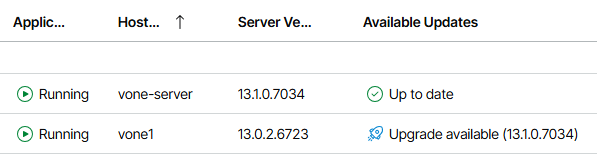
Once we upgraded the Hosted Veeam ONE Server, we can check in two places.
In VSPC go to either:
- Discovery → ONE Servers, or
- Configuration → Catalog → Veeam ONE.
Example of my connected Hosted and Remote (Veeam) ONE Servers in VSPC under Discovery
Upgrading Veeam Backup Enterprise Manager to 13.1 (On Windows)
Why upgrade VBEM before VBR? VBEM connects to VBR or VCC servers and only supports the same or lower versions. It’s also used as your centralized license distribution server, your REST API endpoint, and your self-service portal + VCD plug-in.
Step 1: Check prerequisites
- Read all upgrade prerequisites in the Release Notes first
- Guest OS: Windows Server 2012/R2 are no longer supported
- Database (MSSQL): MSSQL 2012 and 2014 are no longer supported
- Database (PostgreSQL): PostgreSQL 14.x, 15.x or 17.x (17.10 included with setup, not upgraded automatically!)
- Application: make sure you’re on VBEM 12.3.1 (build 12.3.1.1139) or higher
Step 2: Verify compatibility
- Confirm connected backup servers are on 12.3+
- Confirm VMware Cloud Director is at least 10.4 (up to 10.6)
Step 3: Prepare for the upgrade
- Back up the configuration database | KB1471
- Back up all VBEM machines: Server and Database
- Back up all encryption keys (if you’re using password-loss protection)
- Make sure there’s enough space
- Disable the VCD plug-in and access to the self-service portal | Update Guide
- Stop the VBEM service(s)
Step 4: Perform the upgrade
- Upgrade VBEM | Upgrade Guide
Step 5: Upgrade the VCD Plug-in
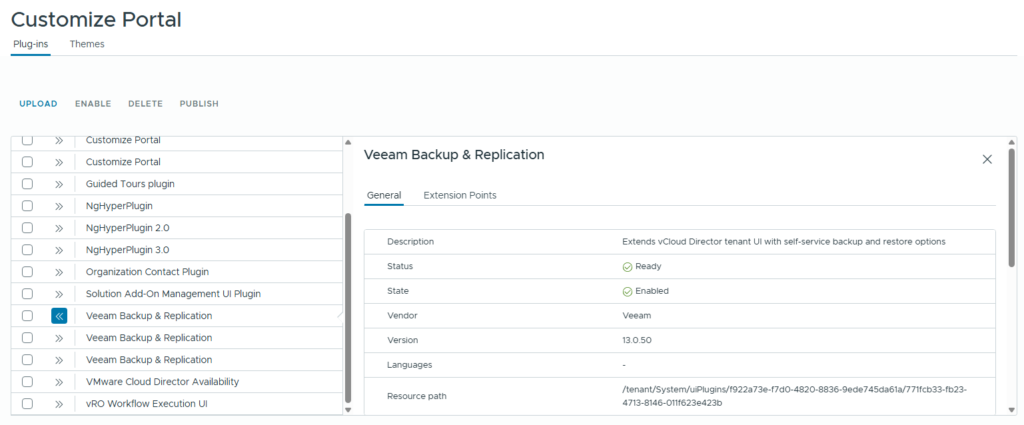
- Upload the new VCD Plug-in version into VCD | Update Guide
- Disable/Remove the older versions
Example of my VCD 10.6 instance with the latest version uploaded and configured
Step 6: Re-enable Jobs
- Enable VBR jobs
- Test the VCD plug-in
Step 7: Upgrade/migrate components (optional)
- Manually upgrade the database server engine to the latest supported version (PostgreSQL or MSSQL)
- Convert the database engine from MSSQL to PostgreSQL using the configuration backup utility — a good way to save on SQL licensing
Verify the upgrade
VBEM on Linux can be added directly from the Web UI via the Catalog (Plug-ins). VBEM on Windows is only recognized if it has the VSPC Management Agent deployed, or if it resides on the VBR server (auto-detected).
Once we upgraded the Hosted Veeam Backup Enterprise Manager, we can check in two places.
In VSPC go to either:
- Discovery → Backup Servers, or
- Configuration → Catalog → Veeam Backup & Replication → Hosted.
Upgrading Veeam Backup Enterprise Manager to 13.1 (On Linux)
Why upgrade VBEM before VBR? VBEM connects to VBR or VCC servers and only supports the same or lower versions. It’s also used as your centralized license distribution server, your REST API endpoint, and your self-service portal + VCD plug-in.
Step 1: Check prerequisites
- Read all upgrade prerequisites in the Release Notes first
Step 2: Verify compatibility
- Confirm connected backup servers are on 12.3+
- Confirm VMware Cloud Director is at least 10.4 (up to 10.6)
Step 3: Prepare for the upgrade
- Back up all VBEM machines: Server and Database
- Back up all encryption keys (if you’re using password-loss protection)
- Disable the VCD plug-in and access to the self-service portal | Update Guide
Step 4: Perform the upgrade
Upgrading the VSA from 13.x to 13.1 is very straightforward | Upgrade Guide
- Go to the Host Management Web UI → Updates → Install Updates Now.
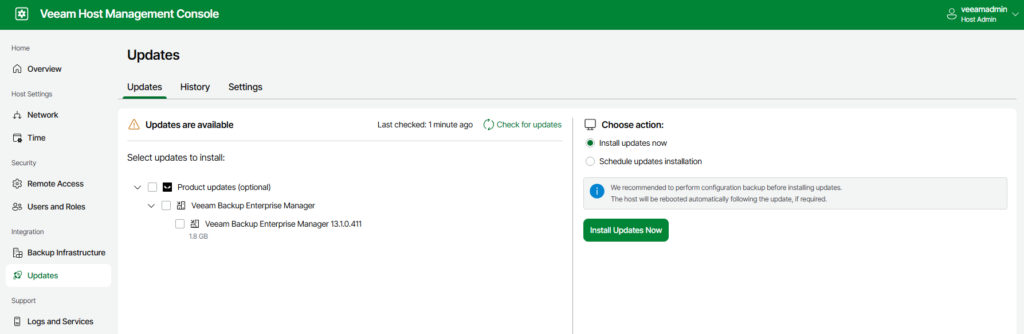
The same steps apply to any Veeam Appliance (VBR, VBEM, VIA).
Note that mandatory updates (OS updates, OS security updates, and VBR security updates) are installed automatically.
Step 5: Upgrade the VCD Plug-in
- Upload the new VCD Plug-in version into VCD | Update Guide
- Disable/Remove the older versions
Example of my VCD 10.6 instance with the latest version uploaded and configured
Step 6: Re-enable Jobs
- Enable VBR jobs
- Test the VCD plug-in
Verify the upgrade
Once we upgraded the Hosted Veeam Backup Enterprise Manager, we can check in two places.
In VSPC go to either:
- Discovery → Backup Servers, or
- Configuration → Catalog → Veeam Backup & Replication → Hosted.
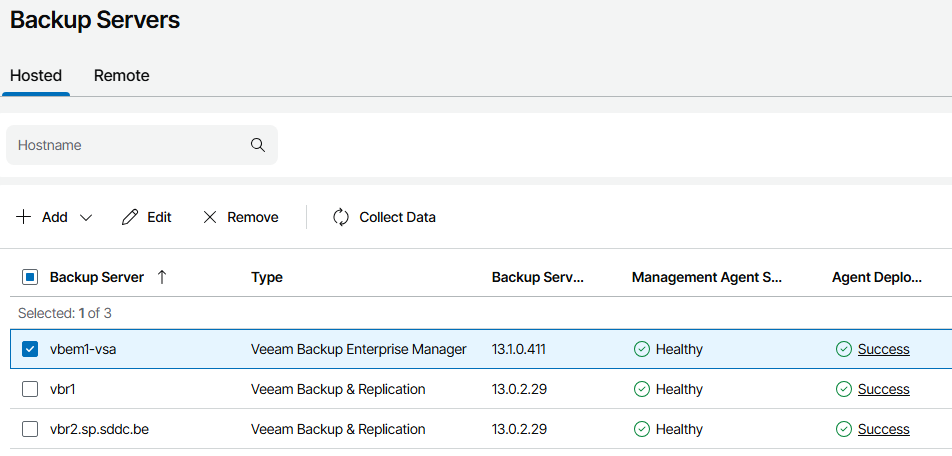
Example of my connected Hosted VBEM Server running the Veeam Software Appliance in VSPC
Upgrading Veeam Cloud Connect to 13.1 (On Windows)
Even with version 13.1, Veeam Cloud Connect is still only available on Windows. This makes the upgrade process pretty easy as many of us are already familiar with upgrading VBR/VCC in previous versions.
Step 1: Check prerequisites
- Go through the Upgrade Checklist
- Read the System Requirements in the User Guide first, and decide which pod to upgrade first to spread the risk
- Guest OS: Windows Server 2012 or higher
- Databases
- MSSQL 2016 or higher
- PostgreSQL 14.x, 15.x, or 17.x (17.10 included with setup, not upgraded automatically!)
- Keep in mind that database engines are not upgraded automatically, therefore if 13.1 does not support your currently installed version, it’s better to check the latest supported version between the version you are upgrading from and the 13.1 and upgrade to that one first.
- Application: make sure you’re on VCC 12.3.1 (build 12.3.1.1139) or higher
Step 2: Verify compatibility
- Read the Veeam Product Versions page to confirm remote tenants are running at least:
- Veeam Backup & Replication 12.3.2.4854 or 13.0.1
- 13.0.0 is not supported !!
- Veeam Agent for Microsoft Windows 6.3.2
- Veeam Agent for Linux 6.3.2
- Veeam Agent for Mac 2.3.1
- Veeam Backup & Replication 12.3.2.4854 or 13.0.1
- Confirm VCC Server and Cloud Gateway certificates are valid and not expired
Step 3: Prepare for the upgrade
- Create a configuration database backup
- Back up all VCC machines: Server, Database, and Gateways
- Make sure there’s enough free space
- Enable Maintenance Mode so running (backup | replication) jobs can finish gracefully and no new jobs start
- Via Cloud Connect Server
- Via VSPC
- Disable/Stop Tape Jobs
- Close TCP/UDP port 6180 to block incoming connections (e.g., restores)
- Close all VBR/VCC consoles
- Stop the VBR/VCC service(s) (not mandatory, but speeds up the upgrade process)
Step 4: Perform the upgrade
- Upgrade the VBR/VCC Server
- Upgrade the VBR/VCC Console
One thing you’ll notice before upgrading is one or more warnings:
- New Veeam Updater service. 13.1 brings a new Veeam Updater service that will automatically install updates on Windows deployments | KB4840
- Infrastructure Appliance servers upgrade. If you are using the Veeam Infrastructure Appliance (VIA) already for Cloud Gateways, Proxies or Hardened Repositories, you will see this warning. It mentions upgrade will take longer, because it will also upgrade the underlaying Rocky Linux OS instead of only the Veeam services.
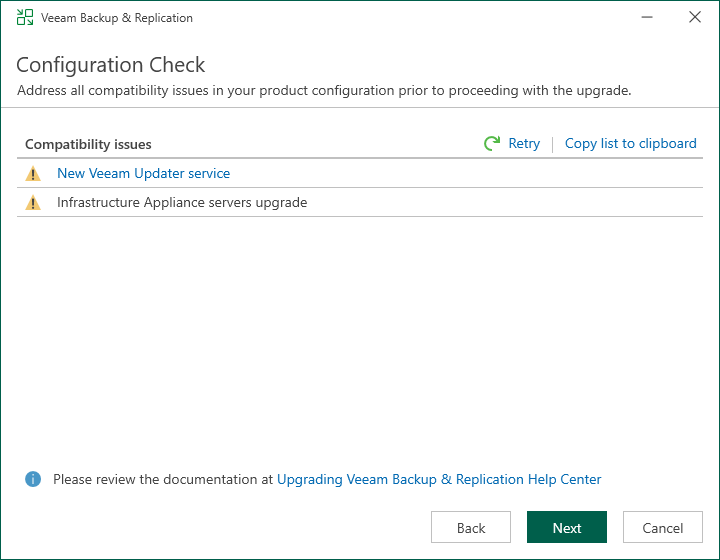
Once you press Next, you will see it’ll upgrade all the components including some Veeam Plug-Ins that are always installed. It would be great to see in the future that we can reduce the install scope and only install the minimum required components for your installation, but at the moment we have to install all of these below. You can even see it pushes the new Plug-In for HPE Morpheus and Xen as well.
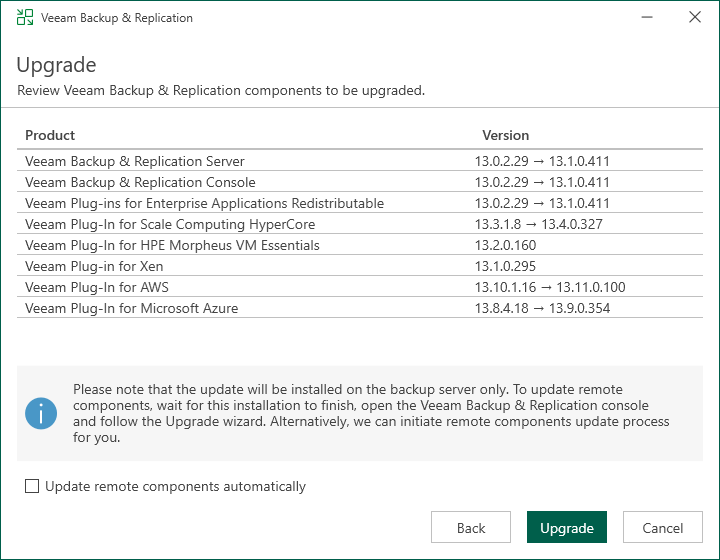
Hit Upgrade and then all the components above will be upgraded and installed.
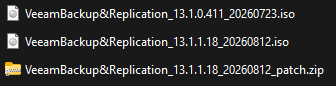
Step 5: Patch 13.1.0 to 13.1.1 (After August 12th, you can skip this)
In case you are like me and downloaded the first 13.1.0 release immediately, then you will see there’s already the patch to 13.1.1 available. If you download the bits today, then that patch’s already been incorporated into the latest ISO and you’re all set.

To get the patch (2.7 GB) go to KB4738 (EXE | ISO) and apply it to the machine.
Note that if you are using the Enterprise Manager for the VCC API, patch that one first.
Of course if you’re downloading the ISO after August 12th, then you will immediately download the latest version and do not have to patch.
Old ISO, New ISO and the Patch
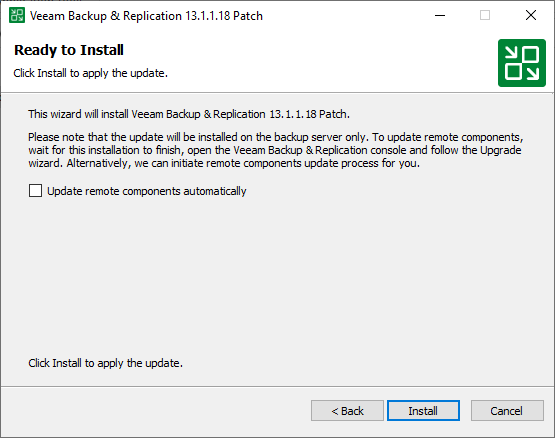
Step 6: After the upgrade
- Reboot the machine (optional after upgrade, mandatory after patch, but always highly recommended)
- Upgrade the connected components: Cloud Gateway(s), Proxy Server(s), Workers, Backup Repository Server(s) etc.
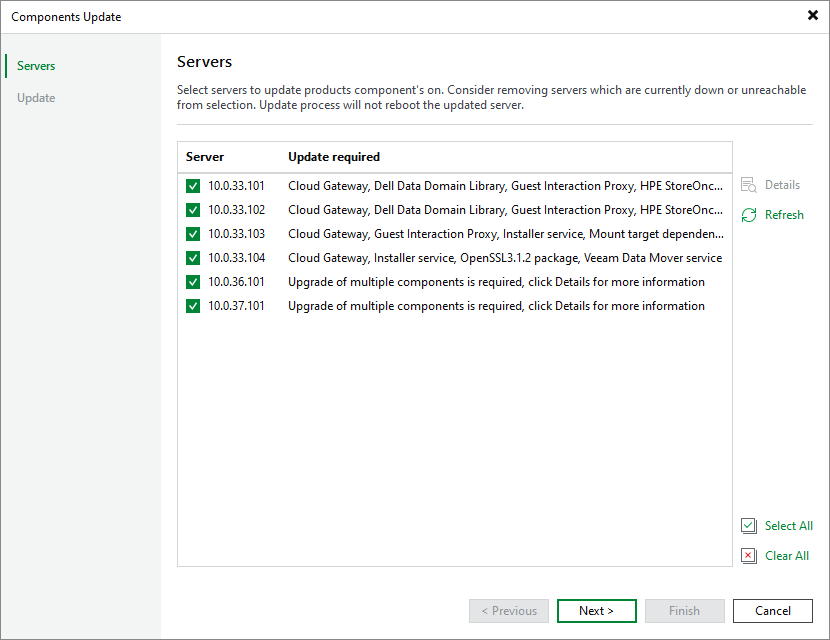
In my lab all the servers running VIA 13.0 failed with the error the OS upgrade could not be performed. Then I shut them down, gave them some more cpu/ram and the upgrade went through.
At the same time I took the chance to switch my Proxy Server and Repository Server, both still running Windows, from credential-based authentication to certificate-based using the Veeam Deployment Kit. Once done, these upgrades also went fine.
For the VIAs, you can also just go to the Host Management Interface (Web UI) and run the update there directly for each appliance. Installing the updates directly on the appliance, just as easy as on the VSA.
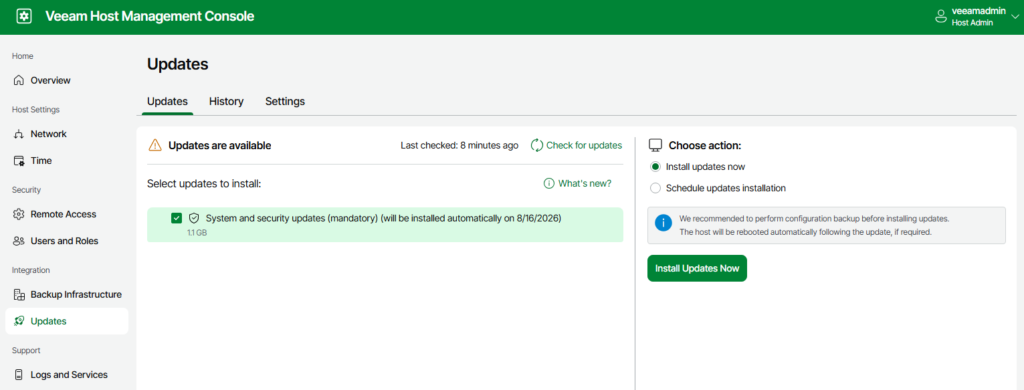
In the end, everything was updated just fine!
Step 7: Open for public
- Disable Maintenance Mode
- Reopen TCP/UDP port 6180
Step 8: Database upgrade/migration (optional)
- Manually upgrade the database server engine to the latest supported version (PostgreSQL or MSSQL)
- Convert the database engine from MSSQL to PostgreSQL using the configuration backup utility
Step 9: Introduce the Veeam Infrastructure Appliance (optional)
- Replace Cloud Gateways, Proxy Servers, and WAN Accelerators on Windows with the Veeam Infrastructure Appliance (VIA) on Linux (note: the Tape Server can run Windows or Linux, but not VIA)
Verify the upgrade
Once we upgraded the Veeam Cloud Connect Server, we can check in two places.
In VSPC go to either:
- Discovery → Backup Servers, or
- Configuration → Catalog → Veeam Cloud Connect → Servers.
Example of my connected Veeam Cloud Connect Server in VSPC

Congratulations!
At this point our VeeaMSP stack is fully upgraded!
You can now start upgrading the connected hosted solutions and the remote site deployments.
Upgrading Veeam Backup & Replication to 13.1 (On Windows or Linux)
If you run VBR on Windows, then the upgrade process looks very similar to what you see above for VCC since it’s the same software, but with a different license.
This section covers additional hosted/remote VBR or VSA servers beyond your Cloud Connect Server.
You can check the state of your hosted and remote backup servers in VSPC:
- Discovery → Backup Servers
- Configuration → Catalog → Veeam Backup & Replication → Hosted | Remote
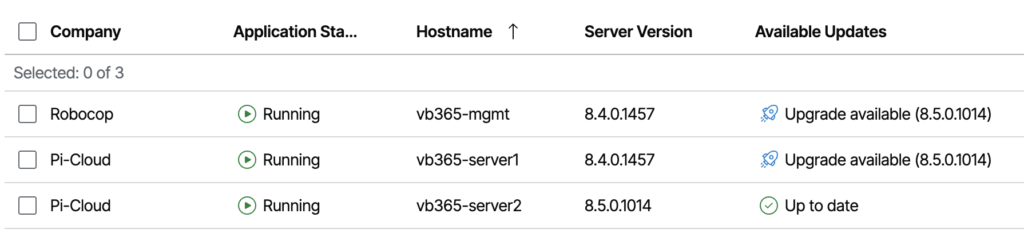
I prefer to check under Discovery, because here I can also see if there’s Available Updates. It’s also easy to see what is hosted and what is remote. In my case “Pi-Cloud” is my VCSP aka hosted, therefore the rest is remote.
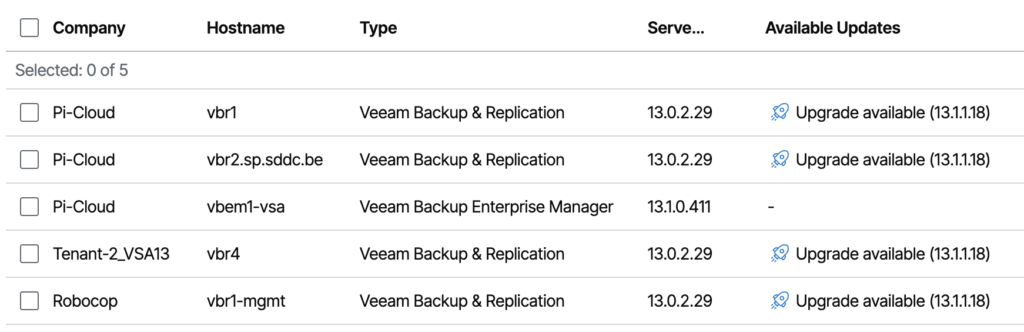
- VBR 12.2 on Windows (or older) requires a manual upgrade first: 12.2 → 12.3.1 → 13.x
- VBR 12.3.1 on Windows can be upgraded directly to 13.1 — even directly from VSPC
- VSA 13.0.0 requires a manual upgrade to 13.0.1 via Host Management → Updates and then to 13.1
Can you upgrade VBR on Windows straight to VSA on Linux? Not today — there’s no upgrade path yet. Converting from Windows to Linux (VSA) will become available later; in the meantime, you can sign up for conversion assistance and move with expert guidance at go.veeam.com/vsa-conversion.
Step 1: Check prerequisites
- Read the upgrade checklist in the User Guide first
- Windows-only:
- Guest OS: Windows Server 2012 or higher
- Database (MSSQL): MSSQL 2016 or higher
- Database (PostgreSQL): PostgreSQL 14.x, 15.x, or 17.x (17.10 included with setup, not upgraded automatically!)
- Application: make sure you’re on VBR 12.3.1 (build 12.3.1.1139) or higher
Step 2: Verify compatibility
- Confirm connected hypervisors, agents, and plug-ins are on compatible versions
Step 3: Prepare for the upgrade
- Disable all jobs
- Create a configuration database backup
- Back up all VBR machines: Server and Database
- Make sure there’s enough space
- Close all VBR consoles
- Stop the VBR service(s)
- Ensure port 443 is open — it’s required for VBR Web UI operations
Step 4: Perform the upgrade
- Upgrade the VBR Server
- Upgrade the VBR Console (Windows)
Today you can very easily upgrade both VBR on Windows as well as the VSA directly from VSPC.
For example, I select my VSA → Manage Updates → Upgrade Server
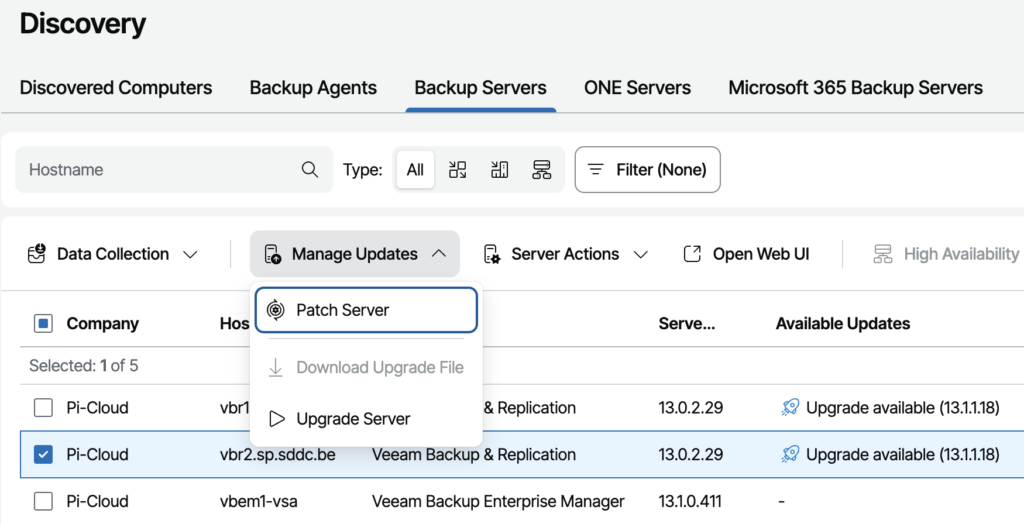
Then in the next pop-up window I can select if I want to install just updates for the current version (if any) or upgrade to the next release. Next you set when to schedule it and off you go! Of course, make sure you disabled the jobs and followed the steps mentioned above.
Note that this also works when you select multiple Backup Servers which is super convenient for when you have multiple sites or clients that need updating.
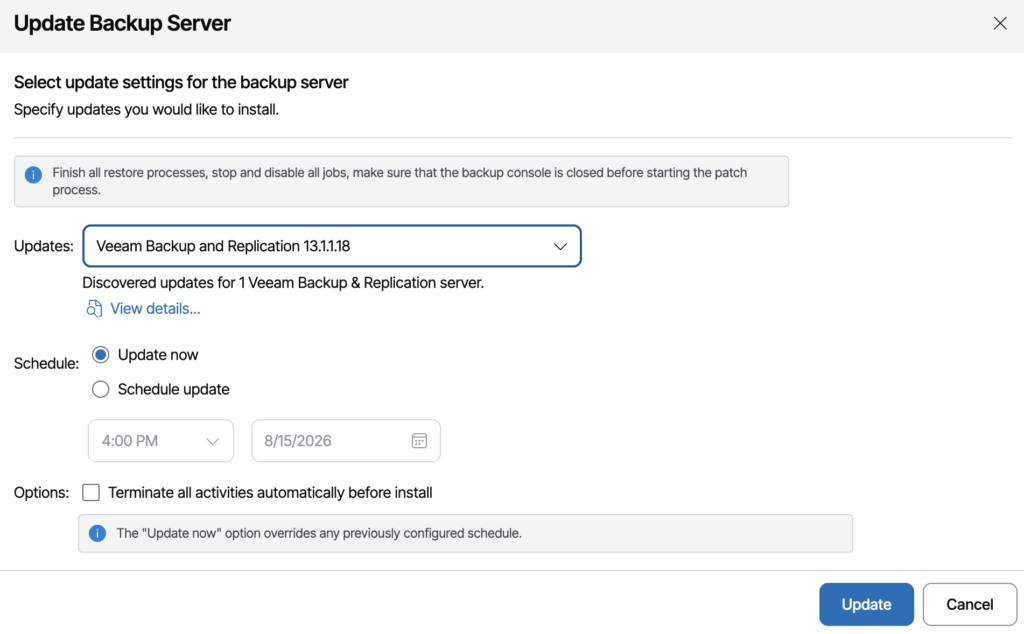
Once we hit Update, we can follow the deployment progress:
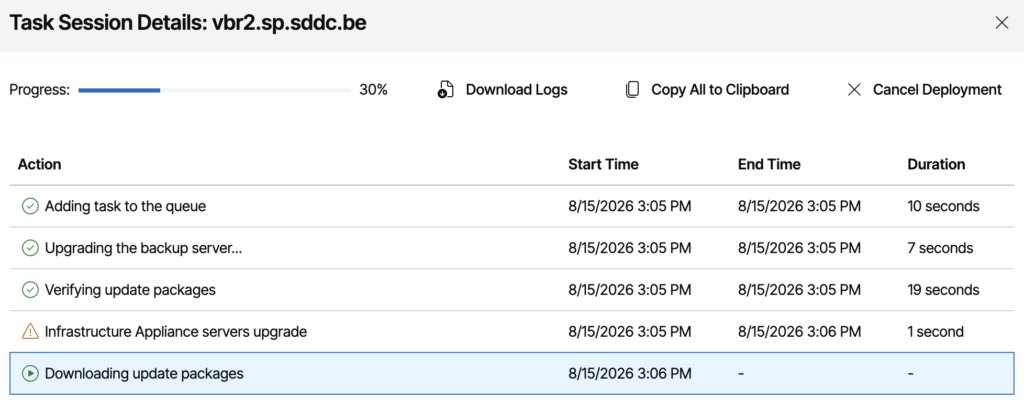
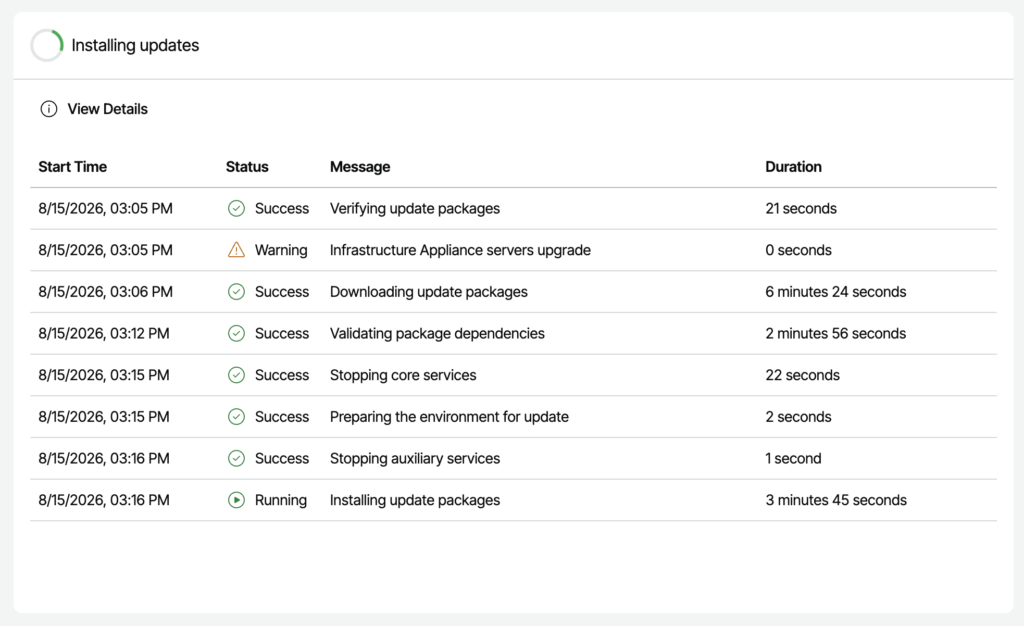
Now when we go to the VSA Host Management Web UI itself to verify, we can clearly see it’s running the upgrade! How cool is that?
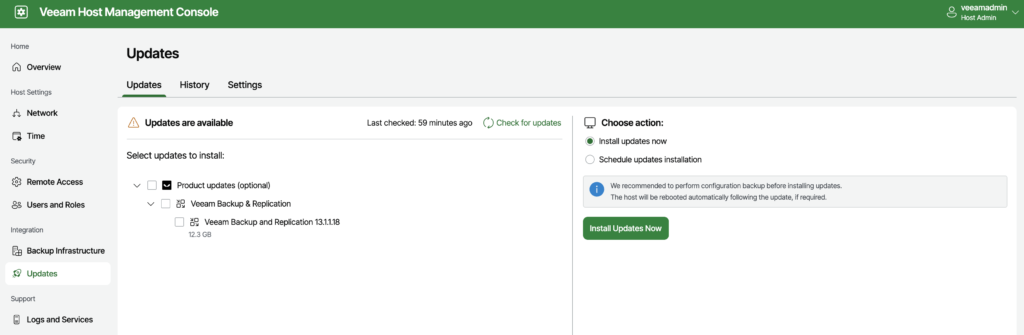
Of course, you can always do the backup servers one by one from the Host Management Web UI of the VSA and manually start the upgrade to 13.1.1. Funny that the update itself is 12.3 GB so don’t get confused here. It’s the size of the update, not version lol.
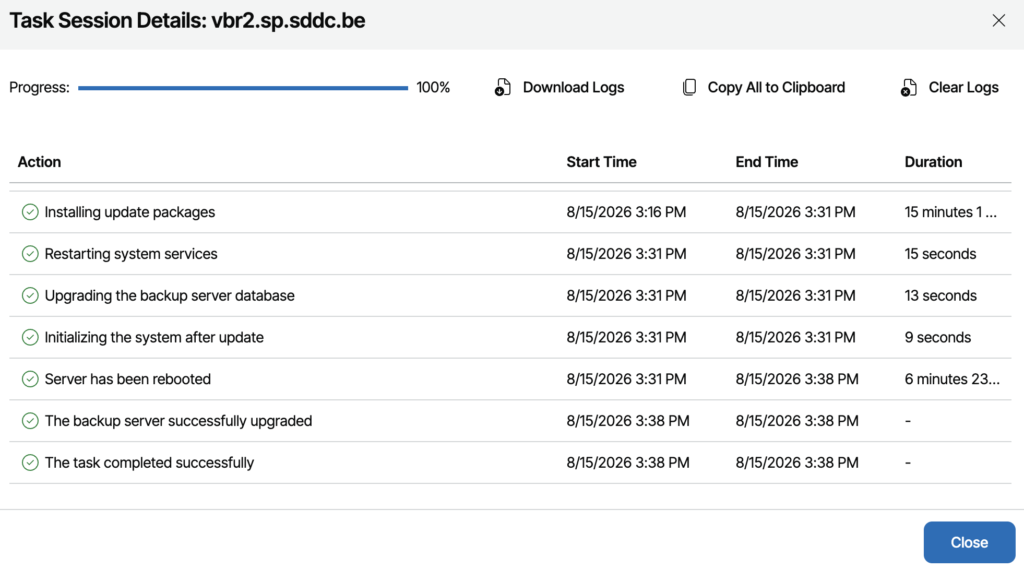
After approximately 20-30 minutes, we see that the upgrade was successful. We clearly see all services were updated, restarted, the database was taken care of, reboots, awesome!
Step 5: After the upgrade
- Upgrade the Windows VBR Console for the VSA in case you forgot earlier!
- Upgrade all VBR roles (this happens on first VBR Console access)
- Enable all jobs
Step 6: Database upgrade/migration (optional and Windows-only)
- Manually upgrade the database server engine to the latest supported version (PostgreSQL or MSSQL)
- Convert the database engine from MSSQL to PostgreSQL using the configuration backup utility
Step 7: Introduce the Veeam Software Appliance (optional)
- Upgrade the connected components: Cloud Gateway(s), Proxy Server(s), Workers, Backup Repository Server(s) etc.
- Replace Proxy Servers, Gateway Servers, Backup Repositories and WAN Accelerators on Windows with the Veeam Infrastructure Appliance (VIA) on Linux (note: the Tape Server can run Windows or Linux, but not VIA)
Verify the upgrade
Once the Hosted VBR has been upgraded, we can check in two places.
In VSPC go to either:
- Discovery → Backup Servers, or
- Configuration → Catalog → Veeam Backup & Replication → Hosted.
Example of my upgraded Hosted Backup Server running the VSA in VSPC

We can clearly see the new version and build number as well as that after the ISO release, already some first security updates are available as well! Again, something we can easily do directly from VSPC.
Backup Agents (Windows, Linux, and macOS)
Backup Agents can be either managed or unmanaged:
- Managed by VSPC — Windows, Linux, and macOS | Upgrade Guide
- Managed by a backup server (any) — via VBR, either manually or through Protection Group(s)
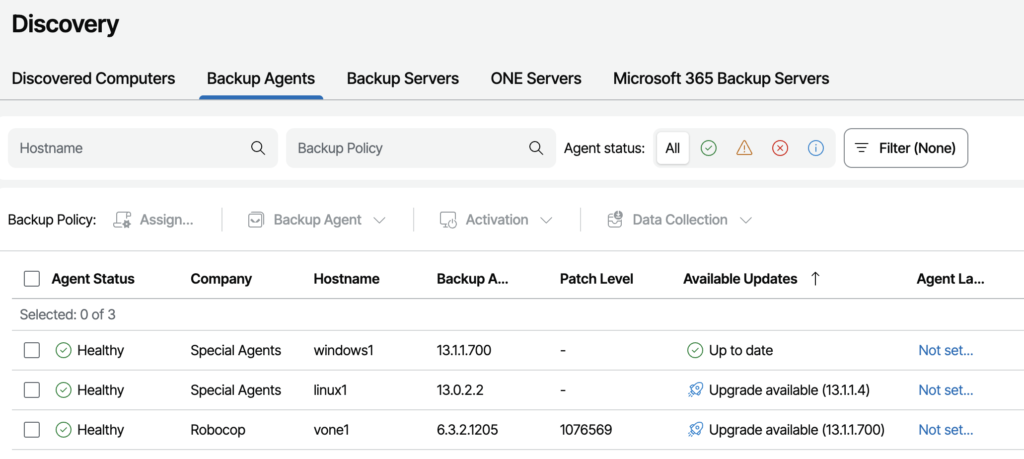
Agents managed via VCC connected to VSPC can be upgraded directly. Agents managed by a backup server must be upgraded through the designated VBR so you need to upgrade that VBR first.
Verify in VSPC: Discovery → Backup Agents.
Upgrading Veeam Backup for Microsoft 365
Microsoft 365 backup servers cannot be upgraded directly from VSPC.
To upgrade those, please refer to Upgrade Guide in the Help Center.
Note that v7 is no longer supported since June 2025, and v8 can and should be upgraded to the latest 8.2.x release. It’s highly recommended to reach out to your Veeam technical pre-sales team for upgrade assistance here.
Verify in VSPC: Discovery → Microsoft 365 Servers
Upgrading Veeam Backup for Public Clouds
Cloud appliances for AWS, Azure, and Google follow the same pattern as Backup Agents:
- Managed by VSPC appliances (via VCC connected to VSPC) can be upgraded directly | Upgrade Guide
- Managed by a backup server appliances must be upgraded through the designated VBR and you might have to upgrade that VBR first.
Upgrading your Remote Sites/Clients
Once you’ve updated your entire hosted platform, you can go and repeat the same procedures from above to upgrade your Remote Sites and Clients one-by-one or several at the same time. Good luck!
Recap: What can you upgrade directly from VSPC?
Upgradable directly from VSPC:
- Backup Agents (Windows, Linux, macOS)
- Backup Servers (VBR, VCC)
- ONE Servers
- Veeam Backup for Public Clouds
Not upgradable directly from VSPC — handle separately:
- Backup Agents (Managed by VBR)
- Veeam Backup for Public Clouds (Managed by VBR)
- Veeam Backup for Microsoft 365
- Veeam Plug-ins
- Veeam Recovery Orchestrator
This guide has been based on upgrading my own lab simulating a Service Provider environment running VSPC 9.3 and VCC 13.1 GA releases. For the most up-to-date guidance, always check the official Veeam upgrade documentation and release notes, and reach out to your Veeam technical pre-sales contact with any questions specific to your environment.
